8i | 9i | 10g | 11g | 12c | 13c | 18c | 19c | 21c | 23c | Misc | PL/SQL | SQL | RAC | WebLogic | Linux
Oracle Application Server 10g Release 3 (10.1.3) Installation On Red Hat Enterprise Linux and CentOS
In this article I'll describe the installation of Oracle Application Server 10g Release 3 (10.1.3), Oracle's J2EE Application Server, on RedHat Advanced Server and CentOS. The article is based on a server installation with a minimum of 2G swap, secure Linux disabled and the following package groups installed.
- X Window System
- GNOME Desktop Environment
- Editors
- Graphical Internet
- Text-based Internet
- Server Configuration Tools
- Development Tools
- Administration Tools
- System Tools
Additional steps may be necessary when starting with a different base OS installation.
Download Software
Download the Oracle Application Server 10g (10.1.3) Software. This is no longer available from OTN, so you will have to raise an SR with Oracle support to get the software.
Unpack Files
Unpack the contents of the file.
cpio -idmv < as_linux_x86_101300_disk1.cpio
The installation files unpack into the current directory.
Hosts File
The "/etc/hosts" file must contain a fully qualified name for the server.
<IP-address> <fully-qualified-machine-name> <machine-name>
Setup
Add the following lines to the "/etc/security/limits.conf" file.
*        soft   nproc         2047
*        hard   nproc         16384
*        soft   nofile        2048
*        hard   nofile        65536
Add the following line to the "/etc/pam.d/login" file, if it does not already exist.
session required pam_limits.so
The installation guide for the core application server makes no reference to kernel parameters, suggesting that the default values are adequate.
If installing version 10.1.3.1, you must comment out the ANT_HOME line from the "/etc/ant.conf" file, or rename the file so it is not detected.
The documentation states that the following packages are required by the relevant operating systems.
# Red Hat Enterprise Linux 3.0 and CentOS 3.x (Update 3)
glibc-2.3.2-95.27
glibc-common-2.3.2-95.27
binutils-2.14.90.0.4-35
compat-glibc-7.x-2.2.4.32.6
compat-libstdc++-7.3-2.96.128
compat-libstdc++-devel-7.3-2.96.128
gcc-3.2.3-42
gcc-c++-3.2.3-42
libstdc++-3.2.3-42
libstdc++-devel-3.2.3-42
openmotif21-2.1.30-8
pdksh-5.2.14-21
setarch-1.3-1
make-3.79.1-17
gnome-libs-1.4.1.2.90-34.1
sysstat-4.0.7-4.EL3.3
compat-db-4.0.14-5


# Red Hat Enterprise Linux 4.0 and CentOS 4.x (Update 1)
glibc-2.3.4-2.9
glibc-common-2.3.4-2.9
binutils-2.15.92.0.2-13
compat-libstdc++-296-2.96-132.7.2
gcc-3.4.3-22.1
gcc-c++-3.4.3-22.1
libstdc++-3.4.3-22.1
libstdc++-devel-3.4.3-22.1
openmotif21-2.1.30-11.RHEL4.4
pdksh-5.2.14-30
setarch-1.6-1
make-3.80-5
gnome-libs-1.4.1.2.90-44.1
sysstat-5.0.5-1
compat-db-4.1.25-9
compat-libstdc++-devel-7.3-2.96.128
compat-glibc-7.x-2.2.4.32.6
compat-libstdc++-7.3-2.96.128
control-center-2.8.0-12
xscreensaver-4.18-5.rhel4.2
Depending on the update/respin version of Red Hat or CentOS, the exact package versions and locations may vary. The installation of the required packages is shown below, with the locations relevant for Red Hat 4.
# RHEL4 Disk 2
cd /media/cdrom/RedHat/RPMS
rpm -Uvh glibc-2*
rpm -Uvh glibc-common-2*
rpm -Uvh binutils-2*
rpm -Uvh libstdc++-3*
rpm -Uvh pdksh-5*
rpm -Uvh setarch-1*
rpm -Uvh make-3*

# RHEL4 Disk 3
cd /media/cdrom/RedHat/RPMS
rpm -Uvh compat-libstdc++-296*
rpm -Uvh gcc-3*
rpm -Uvh gcc-c++-3*
rpm -Uvh libstdc++-devel-3*
rpm -Uvh openmotif21-2*
rpm -Uvh gnome-libs-1*
rpm -Uvh compat-db-4*
rpm -Uvh control-center-2*
rpm -Uvh xscreensaver-4*

# RHEL4 Disk 3
cd /media/cdrom/RedHat/RPMS
rpm -Uvh sysstat-5*
Create the new groups and users.
groupadd oinstall
groupadd dba
groupadd oper

useradd -g oinstall -G dba -s /bin/ksh oracle
passwd oracle
Create the directories in which the Oracle software will be installed.
mkdir -p /u01/app/oracle/product/10.1.3
chown -R oracle.oinstall /u01
Login as root and issue the following command.
xhost +<machine-name>
Login as the oracle user and add the following lines at the end of the ".profile" file.
# Oracle Settings
TMP=/tmp; export TMP
TMPDIR=$TMP; export TMPDIR

ORACLE_BASE=/u01/app/oracle; export ORACLE_BASE
ORACLE_HOME=$ORACLE_BASE/product/10.1.3/OracleAS_1; export ORACLE_HOME
ORACLE_TERM=xterm; export ORACLE_TERM
PATH=/usr/sbin:$ORACLE_HOME/bin:$PATH; export PATH
PATH=$PATH:$ORACLE_HOME/dcm/bin:$ORACLE_HOME/opmn/bin; export PATH
PATH=$PATH:$ORACLE_HOME/Apache/Apache/bin; export PATH

if [ $USER = "oracle" ]; then
  if [ $SHELL = "/bin/ksh" ]; then
    ulimit -p 16384
    ulimit -n 65536
  else
    ulimit -u 16384 -n 65536
  fi
fi

PS1="`hostname`> "
set -o emacs
set filec
Installation
Log into the oracle user. If you are using X emulation then set the DISPLAY environmental variable.
DISPLAY=<machine-name>:0.0; export DISPLAY
Start the Oracle Universal Installer (OUI) by issuing the following command in the Disk1 directory.
./runInstaller
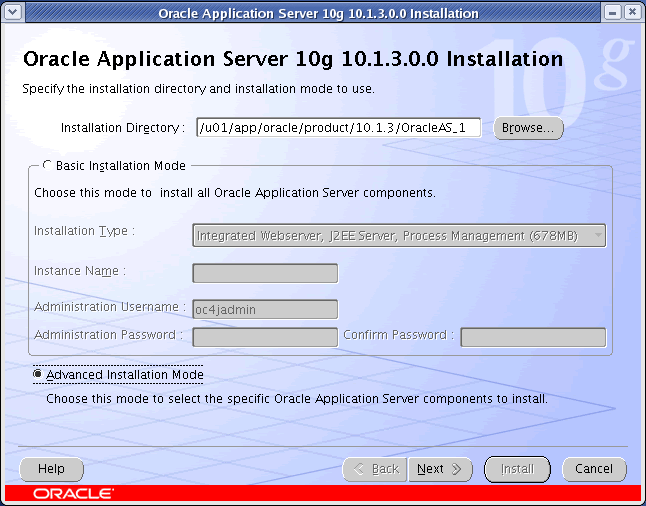
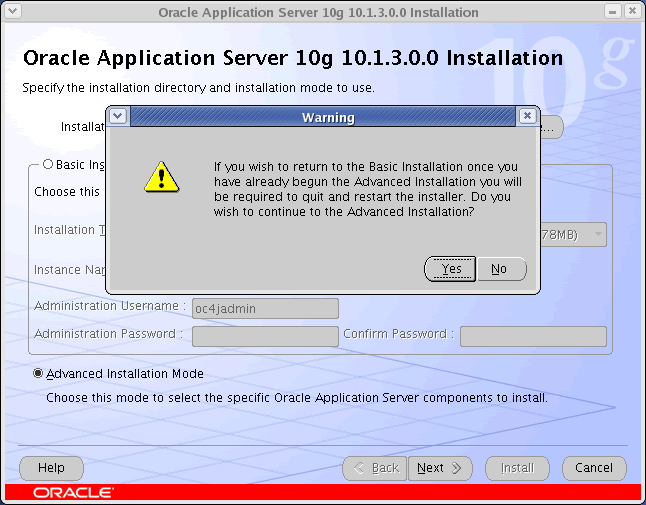
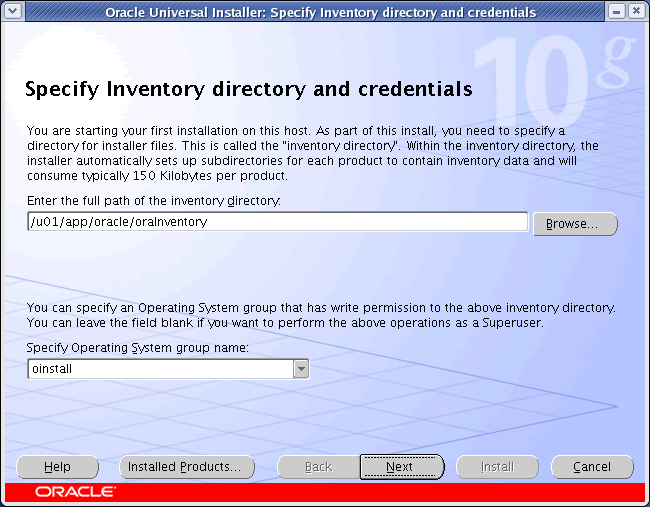
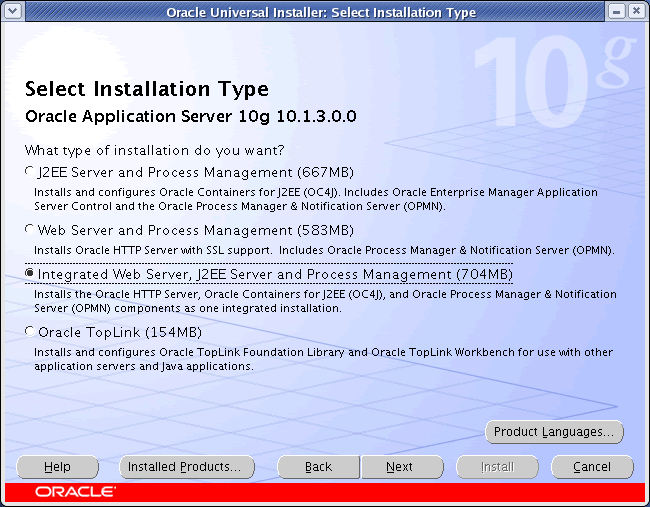
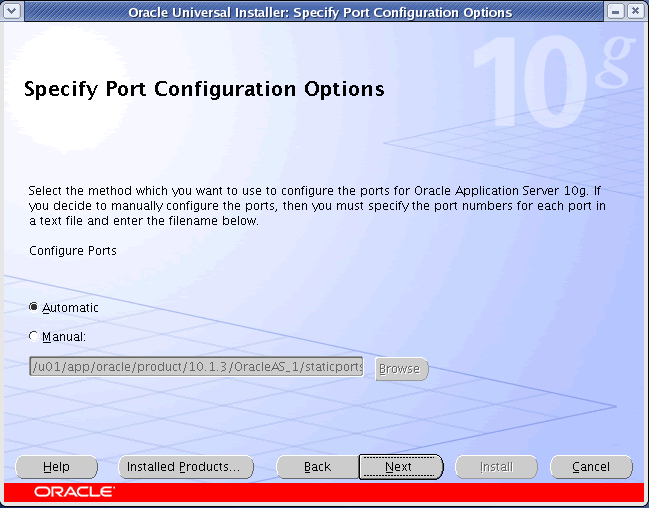
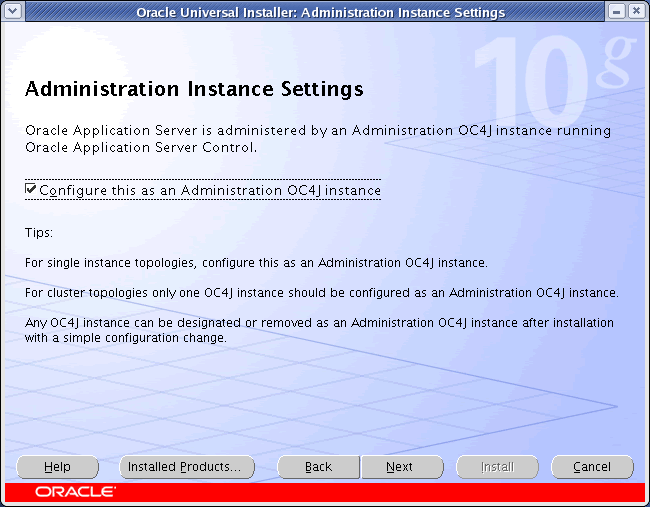
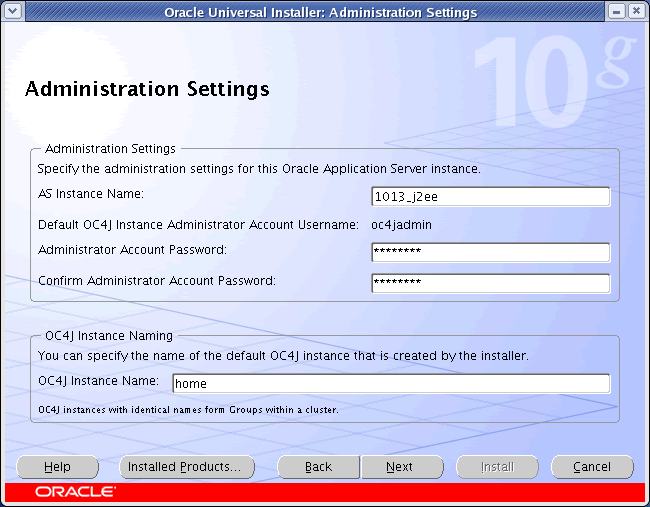
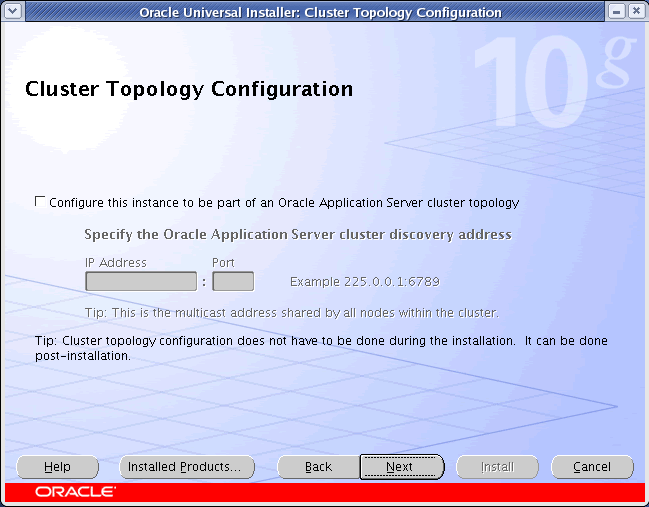
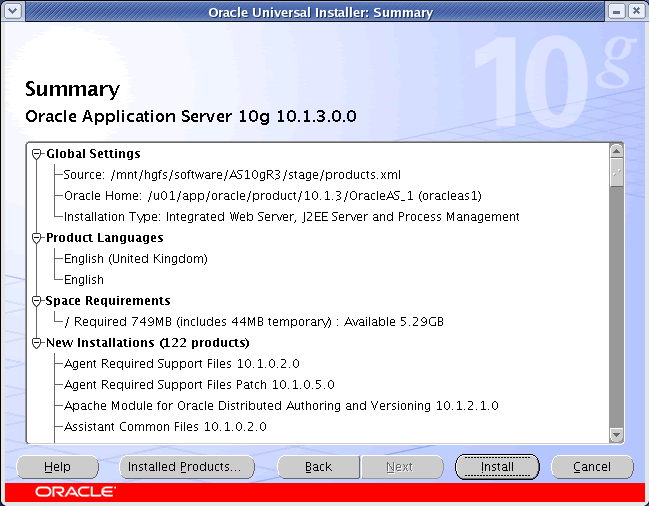
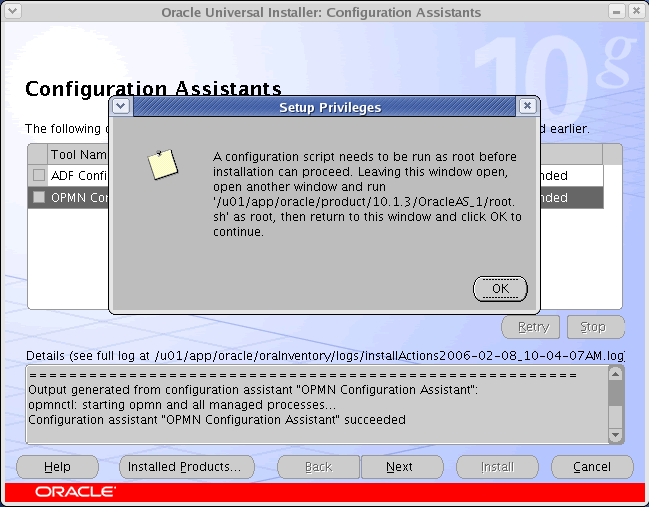
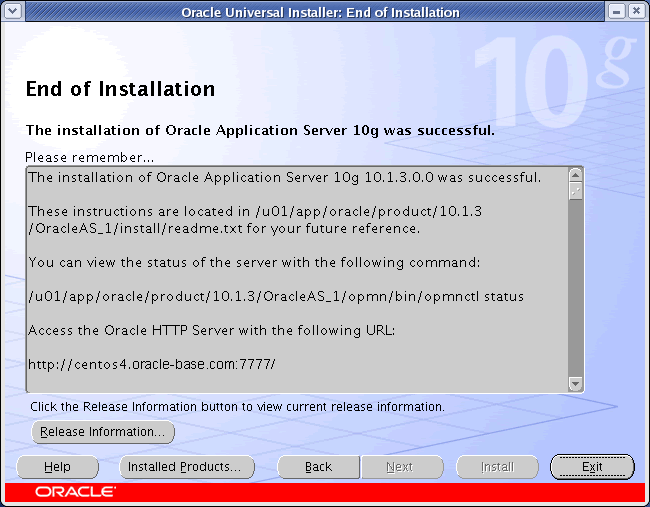
During the installation enter the appropriate ORACLE_HOME and name then continue with the installation. For a more detailed look at the installation process, click on the links below to see screen shots of each stage.
- Installation
- Installation Warning
- Specify Inventory Directory and Credentials
- Specify Inventory Directory and Credentials Dialog
- Select Installation Type
- Product-Specific Prerequisite Checks
- Specify Port Configuration Options
- Administration Instance Settings
- Administration Settings
- Cluster Topology Configuration
- Summary
- Install
- Configuration Assistants
- Setup Privileges
- End of Installation




Post Installation
With the installation complete you can perform any administration tasks using the Enterprise Manager Website (http://<fully-qualified-machine-name>:7777/em). Log in using the username "oc4jadmin" and the password you assigned during the installation.
For more information see:
Hope this helps. Regards Tim...