8i | 9i | 10g | 11g | 12c | 13c | 18c | 19c | 21c | 23c | Misc | PL/SQL | SQL | RAC | WebLogic | Linux
Oracle Database 10g Release 2 (10.2.0.1) Installation On Red Hat Enterprise Linux 3 (RHEL3)
In this article I'll describe the installation of Oracle Database 10g Release 2 (10.2.0.1) on Red Hat Enterprise Linux 3 (RHEL3). The article is based on a server installation with a minimum of 2G swap, secure Linux disabled and the following package groups installed.
- X Window System
- GNOME Desktop Environment
- Editors
- Graphical Internet
- Text-based Internet
- Server Configuration Tools
- Development Tools
- Administration Tools
- System Tools
The installation is certified against RHEL3 Update 3 or above, but it will work against the initial release with some minor adjustments. Alternative installations may require more packages to be loaded, in addition to the ones listed below.
- Download Software
- Unpack Files
- Hosts File
- Set Kernel Parameters
- Setup
- Installation
- Post Installation
Download Software
Download the following software.
Unpack Files
Unzip the files.
unzip 10201_database_linux32.zip
You should now have a single directory containing installation files. Depending on the age of the download this may either be named "db/Disk1" or "database".
Hosts File
The "/etc/hosts" file must contain a fully qualified name for the server.
<IP-address> <fully-qualified-machine-name> <machine-name>
Set Kernel Parameters
Add the following lines to the "/etc/sysctl.conf" file.
kernel.shmall = 2097152
kernel.shmmax = 2147483648
kernel.shmmni = 4096
# semaphores: semmsl, semmns, semopm, semmni
kernel.sem = 250 32000 100 128
fs.file-max = 65536
net.ipv4.ip_local_port_range = 1024 65000
net.core.rmem_default=262144
net.core.rmem_max=262144
net.core.wmem_default=262144
net.core.wmem_max=262144
Run the following command to change the current kernel parameters.
/sbin/sysctl -p
Add the following lines to the "/etc/security/limits.conf" file.
*               soft    nproc   2047
*               hard    nproc   16384
*               soft    nofile  1024
*               hard    nofile  65536
Add the following line to the "/etc/pam.d/login" file, if it does not already exist.
session required pam_limits.so
Note by Kent Anderson: In the event that pam_limits.so cannot set privileged limit settings see Bug 115442.
Setup
Install the following packages.
# From RedHat AS3 Disk 2
cd /mnt/cdrom/RedHat/RPMS
rpm -Uvh setarch-1*
rpm -Uvh openmotif-2*

# From RedHat AS3 Disk 3
cd /mnt/cdrom/RedHat/RPMS
rpm -Uvh compat-libstdc++-7*
rpm -Uvh compat-libstdc++-devel-7*
rpm -Uvh compat-db-4*
rpm -Uvh compat-gcc-7*
rpm -Uvh compat-gcc-c++-7*
rpm -Uvh libaio-0*
Create the new groups and users.
groupadd oinstall
groupadd dba
groupadd oper

useradd -g oinstall -G dba oracle
passwd oracle
Create the directories in which the Oracle software will be installed.
mkdir -p /u01/app/oracle/product/10.2.0/db_1
chown -R oracle.oinstall /u01
Login as root and issue the following command.
xhost +<machine-name>
Login as the oracle user and add the following lines at the end of the ".bash_profile" file.
# Oracle Settings
TMP=/tmp; export TMP
TMPDIR=$TMP; export TMPDIR

ORACLE_BASE=/u01/app/oracle; export ORACLE_BASE
ORACLE_HOME=$ORACLE_BASE/product/10.2.0/db_1; export ORACLE_HOME
ORACLE_SID=TSH1; export ORACLE_SID
ORACLE_TERM=xterm; export ORACLE_TERM
PATH=/usr/sbin:$PATH; export PATH
PATH=$ORACLE_HOME/bin:$PATH; export PATH

LD_LIBRARY_PATH=$ORACLE_HOME/lib:/lib:/usr/lib; export LD_LIBRARY_PATH
CLASSPATH=$ORACLE_HOME/JRE:$ORACLE_HOME/jlib:$ORACLE_HOME/rdbms/jlib; export CLASSPATH
#LD_ASSUME_KERNEL=2.4.1; export LD_ASSUME_KERNEL

if [ $USER = "oracle" ]; then
  if [ $SHELL = "/bin/ksh" ]; then
    ulimit -p 16384
    ulimit -n 65536
  else
    ulimit -u 16384 -n 65536
  fi
fi
Installation
Log into the oracle user. If you are using X emulation then set the DISPLAY environmental variable.
DISPLAY=<machine-name>:0.0; export DISPLAY
Start the Oracle Universal Installer (OUI) by issuing the following command in the database directory.
./runInstaller
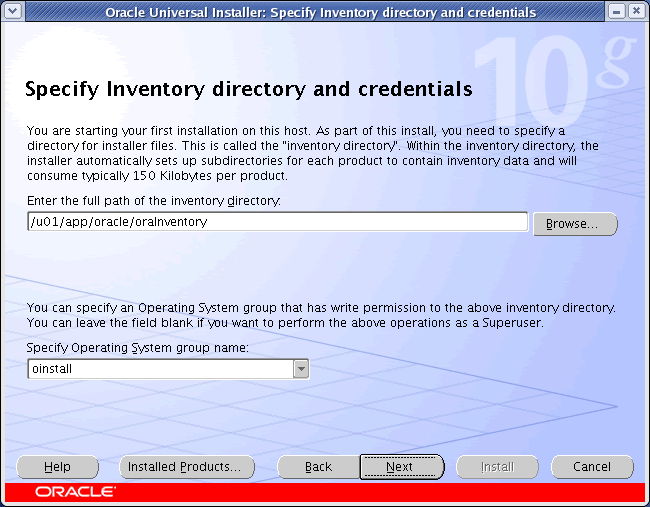
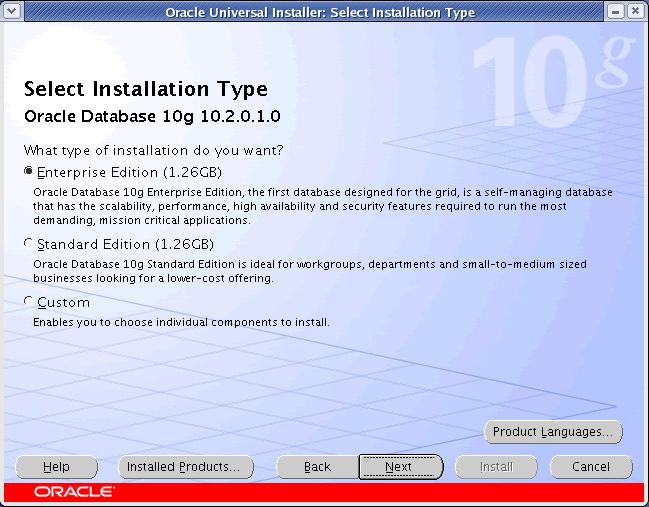
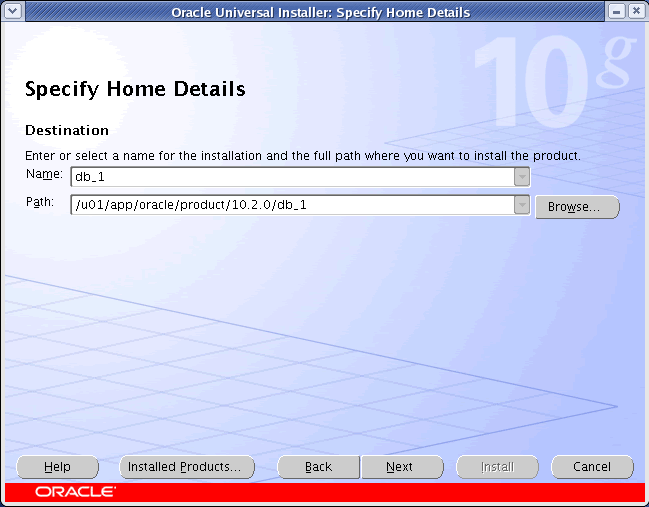
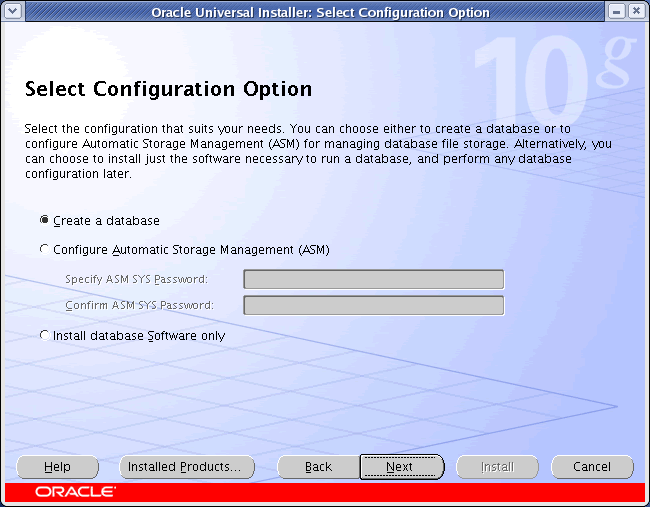
During the installation enter the appropriate ORACLE_HOME and name then continue with the installation.
When using the first release of RHEL AS 3.0 the pre-requesite check will complain about the version of the glibc package. To continue simply tick this error to confirm you wish to proceed anyway. The installation will work correctly but you will not have a supported installation. This issue doesn't occur with RHEL AS 3.0 Update 3 or above.
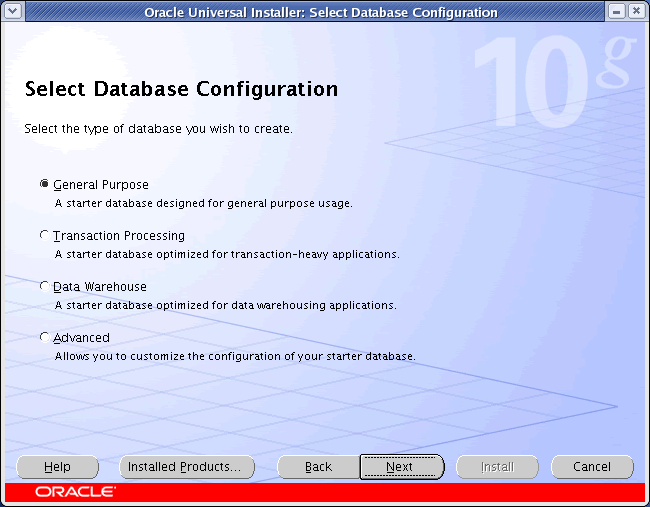
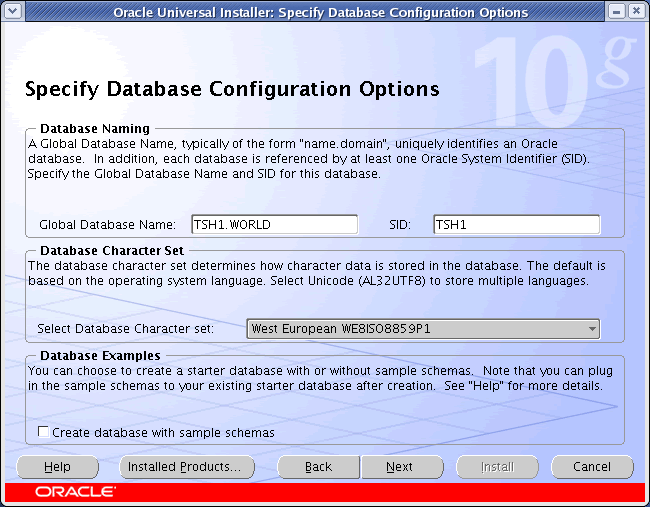
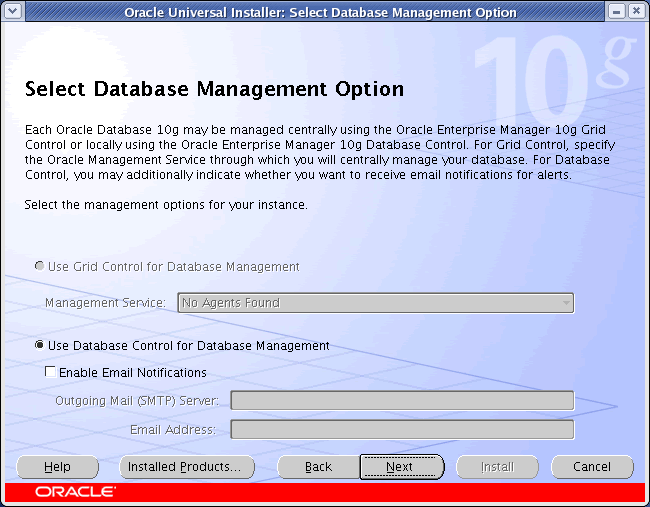
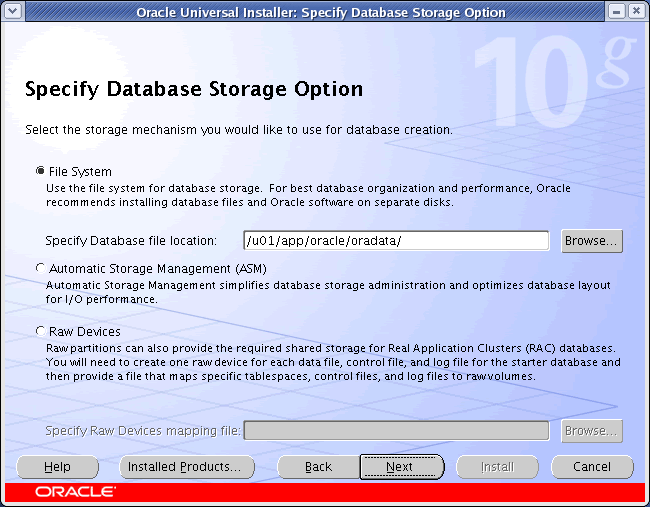
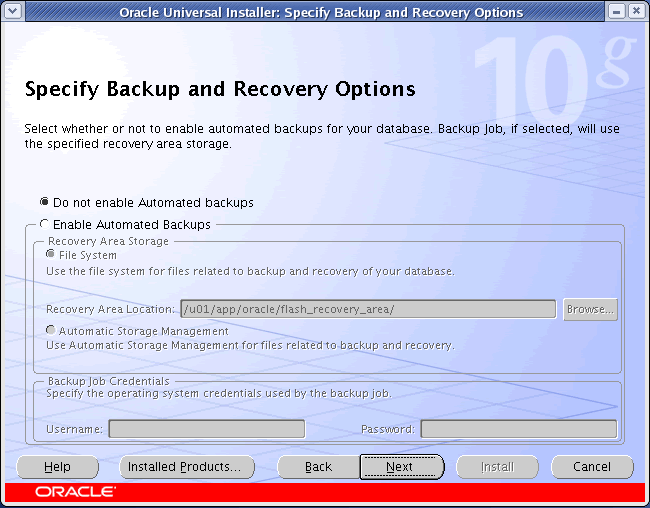
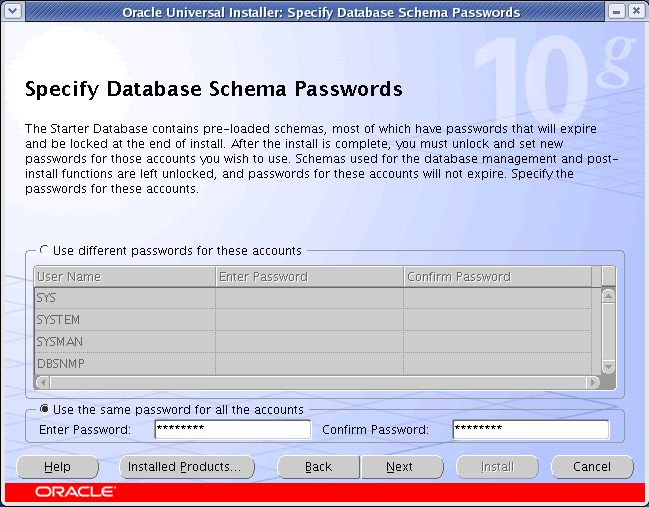
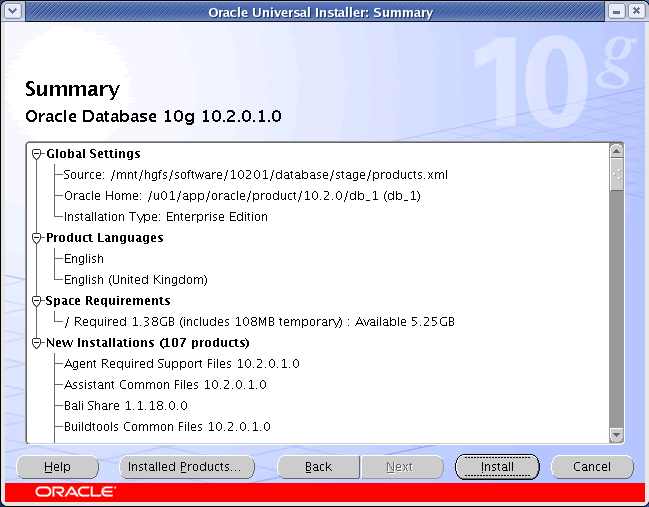
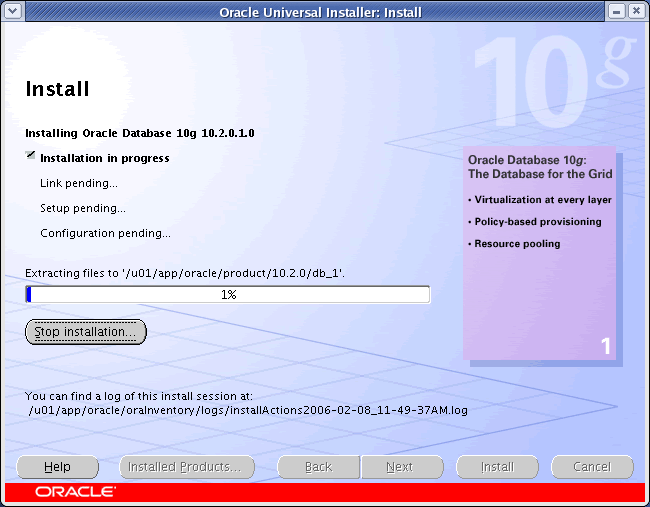
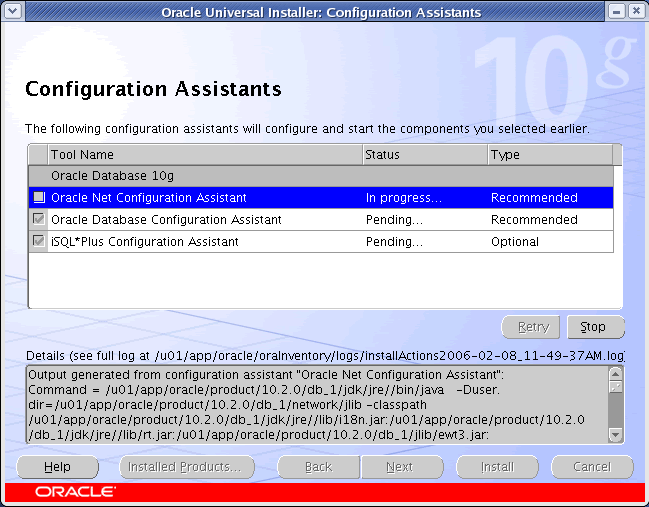
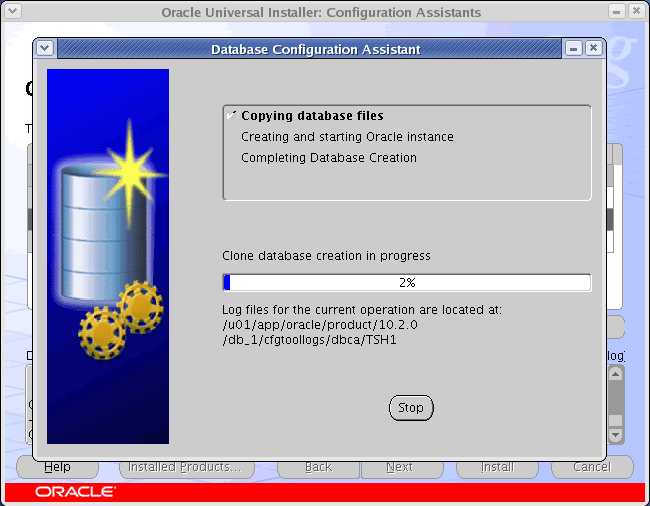
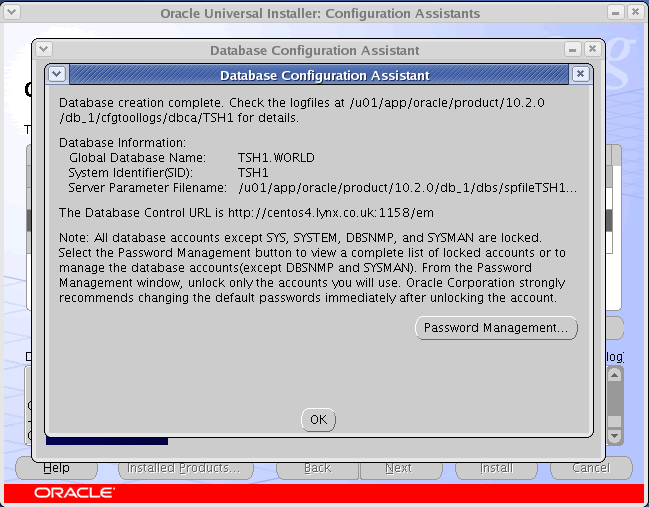
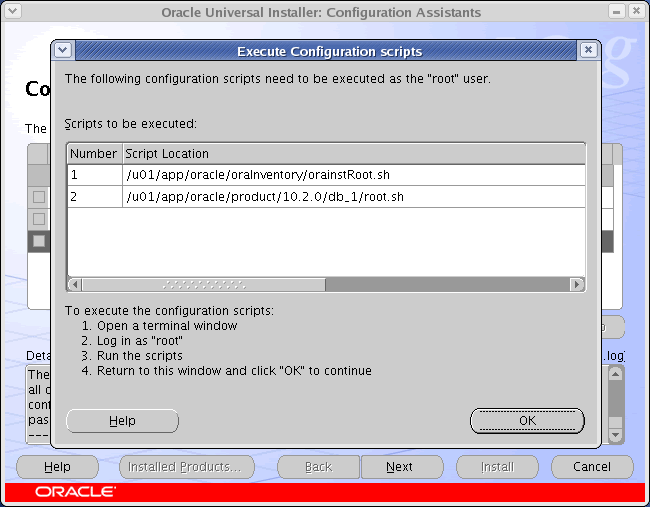
For a more detailed look at the installation process, click on the links below to see screen shots of each stage.
- Select Installation Method
- Specify Inventory Directory and Credentials
- Select Installation Type
- Specify Home Details
- Product-Specific Prerequisite Checks
- Select Configuration Option
- Select Database Configuration
- Specify Database Configuration Options
- Select Database Management Option
- Specify Database Storage Option
- Specify Backup and Recovery Options
- Specify Database Schema Passwords
- Summary
- Install
- Configuration Assistants
- Database Configuration Assistant
- Database Configuration Assistant Password Management
- Execute Configuration Scripts
- End Of Installation



Post Installation
Finally edit the "/etc/oratab" file setting the restart flag for each instance to 'Y'.
TSH1:/u01/app/oracle/product/10.2.0/db_1:Y
For more information see:
Hope this helps. Regards Tim...