8i | 9i | 10g | 11g | 12c | 13c | 18c | 19c | 21c | 23c | Misc | PL/SQL | SQL | RAC | WebLogic | Linux
Oracle Database 11g Release 2 (11.2) Installation On Fedora 12 (F12)
This article describes the installation of Oracle Database 11g Release 2 (11.2) 64-bit on Fedora 12 (F12) 64-bit. The article is based on a server installation with a minimum of 2G swap and secure Linux disabled. An example of this type of Linux installation can be seen here. The installation should also include the following package groups.
- Gnome Desktop Environment
- Editors
- Graphical Internet
- Development Libraries
- Development Tools
- Server Configuration Tools
- Administration Tools
- Base
- Fonts
- Hardware Support
- Input Methods
- System Tools
- X Windows System
Variations on this installation may require additional steps for the Oracle installation to complete successfully.
- Download Software
- Unpack Files
- Hosts File
- Set Kernel Parameters
- Setup
- Installation
- Post Installation
Download Software
Download the following software.
Unpack Files
Unzip the files.
unzip linux.x64_11gR2_database_1of2.zip
unzip linux.x64_11gR2_database_2of2.zip
You should now have a single directory called "database" containing installation files.
Hosts File
The "/etc/hosts" file must contain a fully qualified name for the server.
<IP-address> <fully-qualified-machine-name> <machine-name>
Set Kernel Parameters
Oracle recommend the following minimum parameter settings.
fs.aio-max-nr = 1048576
fs.file-max = 6815744
kernel.shmall = 2097152
kernel.shmmax = 536870912
kernel.shmmni = 4096
kernel.sem = 250 32000 100 128
net.ipv4.ip_local_port_range = 9000 65500
net.core.rmem_default = 262144
net.core.rmem_max = 4194304
net.core.wmem_default = 262144
net.core.wmem_max = 1048586
The current values can be tested using the following command.
/sbin/sysctl -a | grep <param-name>
Add or amend the following lines in the "/etc/sysctl.conf" file.
fs.aio-max-nr = 1048576
fs.file-max = 6815744
kernel.shmall = 2097152
kernel.shmmax = 536870912
kernel.shmmni = 4096
# semaphores: semmsl, semmns, semopm, semmni
kernel.sem = 250 32000 100 128
net.ipv4.ip_local_port_range = 9000 65500
net.core.rmem_default=262144
net.core.rmem_max=4194304
net.core.wmem_default=262144
net.core.wmem_max=1048586
Run the following command to change the current kernel parameters.
/sbin/sysctl -p
Add the following lines to the "/etc/security/limits.conf" file.
oracle              soft    nproc   2047
oracle              hard    nproc   16384
oracle              soft    nofile  1024
oracle              hard    nofile  65536
Add the following line to the "/etc/pam.d/login" file, if it does not already exist.
session required pam_limits.so
Start the Firewall administration dialog (System > Administration > Firewall). Click the "Disable" button followed by the apply button on the toolbar, then close the dialog.
Disable secure linux by editing the "/etc/selinux/config" file, making sure the SELINUX flag is set as follows.
SELINUX=disabled
Alternatively, this alteration can be done using the GUI tool (Applications > System Settings > Security Level). Click on the SELinux tab and disable the feature. If SELinux is disabled after installation, the server will need a reboot for the change to take effect.
Setup
If you have installed the suggested package groups during the installation, the majority of the necessary packages will already be installed. Install the following packages.
yum install binutils
yum install libaio libaio-devel
yum install ksh
yum install sysstat
yum install unixODBC unixODBC-devel
yum install compat-libstdc++-33
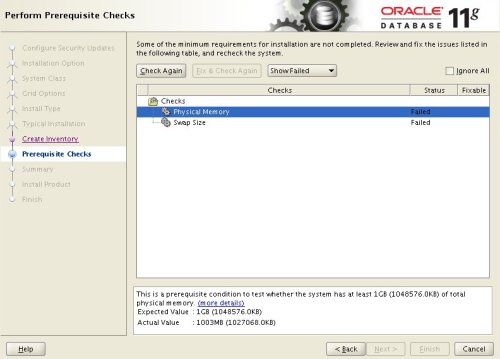
Notice we have not explicitly installed any 32-bit packages. The installer prerequisite checks will fail because of this, but they can be ignored and the installation will proceed normally.
Create the new groups and users.
groupadd oinstall
groupadd dba
groupadd oper
groupadd asmadmin

useradd -g oinstall -G dba,oper,asmadmin oracle
passwd oracle
We are not going to use the "asmadmin" group, since this installation will not use ASM.
Create the directories in which the Oracle software will be installed.
mkdir -p /u01/app/oracle/product/11.2.0/db_1
chown -R oracle:oinstall /u01
chmod -R 775 /u01
Login as root and issue the following command.
xhost +<machine-name>
Edit the "/etc/redhat-release" file replacing the current release information (Fedora release 12 (Constantine)) with the following.
redhat release 5
Login as the oracle user and add the following lines at the end of the ".bash_profile" file.
# Oracle Settings
TMP=/tmp; export TMP
TMPDIR=$TMP; export TMPDIR

ORACLE_HOSTNAME=f1264.localdomain; export ORACLE_HOSTNAME
ORACLE_UNQNAME=DB11G; export ORACLE_UNQNAME
ORACLE_BASE=/u01/app/oracle; export ORACLE_BASE
ORACLE_HOME=$ORACLE_BASE/product/11.2.0/db_1; export ORACLE_HOME
ORACLE_SID=DB11G; export ORACLE_SID
ORACLE_TERM=xterm; export ORACLE_TERM
PATH=/usr/sbin:$PATH; export PATH
PATH=$ORACLE_HOME/bin:$PATH; export PATH

LD_LIBRARY_PATH=$ORACLE_HOME/lib:/lib:/usr/lib; export LD_LIBRARY_PATH
CLASSPATH=$ORACLE_HOME/JRE:$ORACLE_HOME/jlib:$ORACLE_HOME/rdbms/jlib; export CLASSPATH
Installation
Log into the oracle user. If you are using X emulation then set the DISPLAY environmental variable.
DISPLAY=<machine-name>:0.0; export DISPLAY
Start the Oracle Universal Installer (OUI) by issuing the following command in the database directory.
./runInstaller
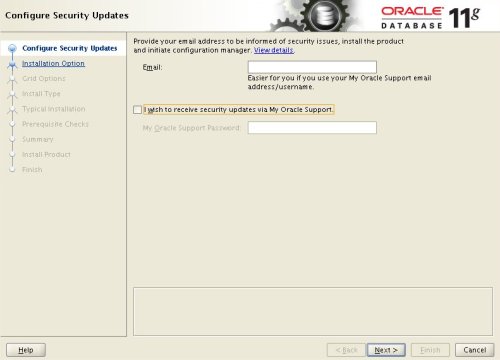
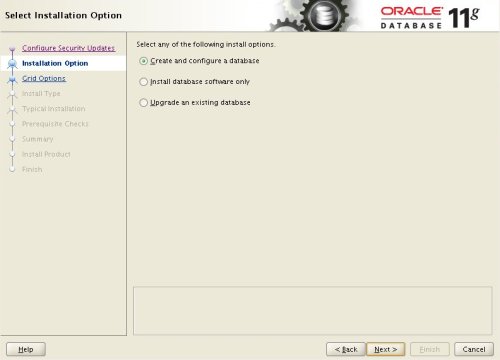
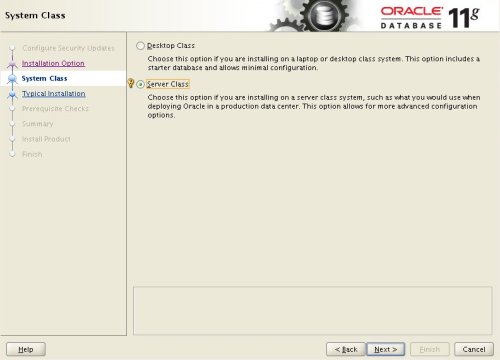
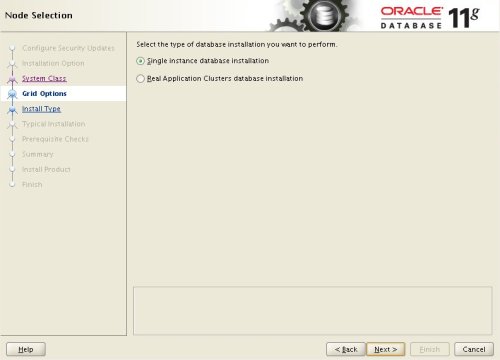
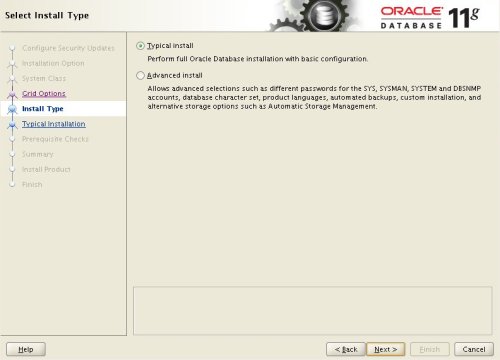
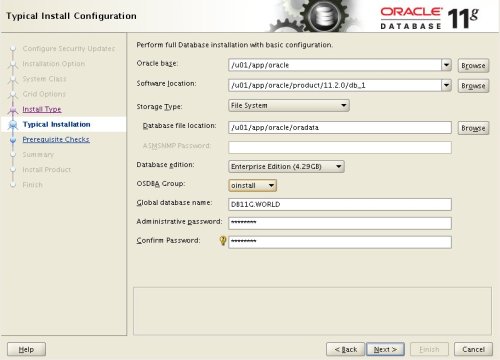
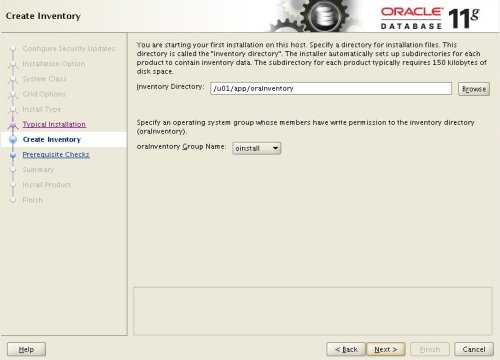
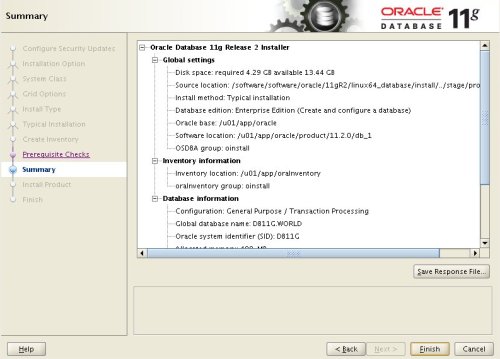
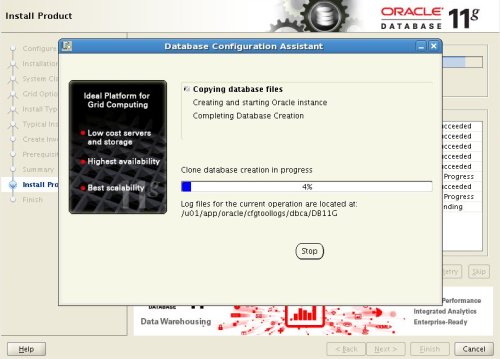
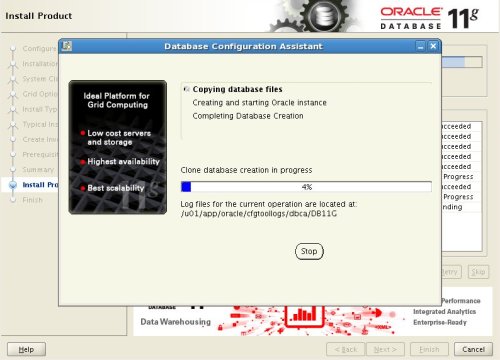
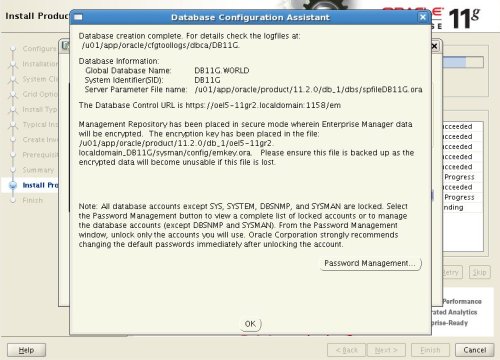
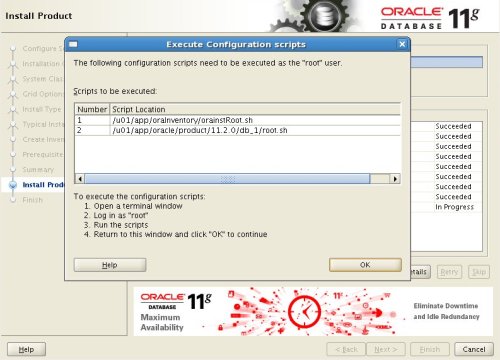
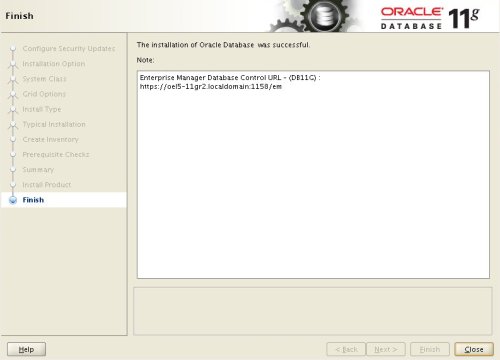
Proceed with the installation of your choice. You can see the installation I performed by clicking on the links below to see screen shots of each stage. Note. The prerequisites checks will show a number of packages missing, but these can be ignored.
- Configure Security Updates
- Select Install Option
- System Class
- Node Selection
- Select Install Type
- Typical Install Configuration
- Create Inventory
- Perform Prerequisite Checks
- Summary
- Install Product
- Database Configuration Assistant
- Database Configuration Assistant 2
- Execute Configuration Scripts
- Finish
Post Installation
Edit the "/etc/redhat-release" file restoring the original release information.
Fedora release 12 (Constantine)
Edit the "/etc/oratab" file setting the restart flag for each instance to 'Y'.
DB11G:/u01/app/oracle/product/11.2.0/db_1:Y
For more information see:
- Oracle Database Installation Guide 11g Release 2 (11.2) for Linux
- Automating Database Startup and Shutdown on Linux
Hope this helps. Regards Tim...