8i | 9i | 10g | 11g | 12c | 13c | 18c | 19c | 21c | 23c | Misc | PL/SQL | SQL | RAC | WebLogic | Linux
Oracle Database 11g Release 2 RAC On Oracle Linux 5.8 Using VirtualBox
This article describes the installation of Oracle Database 11g release 2 (11.2 64-bit) RAC on Oracle Linux (5.8 64-bit) using VirtualBox (4.2.6) with no additional shared disk devices.
I've purposely left this as an 11.2.0.1 installation as this version is downloadable from OTN without the need for a My Oracle Support (MOS) CSI. The process works just as well for 11.2.0.3, which you can download from MOS.
- Introduction
- Download Software
- VirtualBox Installation
- Virtual Machine Setup
- Guest Operating System Installation
- Oracle Installation Prerequisites
- Install Guest Additions
- Create Shared Disks
- Clone the Virtual Machine
- Install the Grid Infrastructure
- Install the Database
- Check the Status of the RAC
Related articles.
- Oracle Database 11g Release 2 (11.2.0.3.0) RAC On Oracle Linux 6.3 Using VirtualBox
- Oracle Database 11g Release 2 RAC On Windows 2008 Using VirtualBox
Introduction
One of the biggest obstacles preventing people from setting up test RAC environments is the requirement for shared storage. In a production environment, shared storage is often provided by a SAN or high-end NAS device, but both of these options are very expensive when all you want to do is get some experience installing and using RAC. A cheaper alternative is to use a FireWire disk enclosure to allow two machines to access the same disk(s), but that still costs money and requires two servers. A third option is to use virtualization to fake the shared storage.
Using VirtualBox you can run multiple Virtual Machines (VMs) on a single server, allowing you to run both RAC nodes on a single machine. In addition, it allows you to set up shared virtual disks, overcoming the obstacle of expensive shared storage.
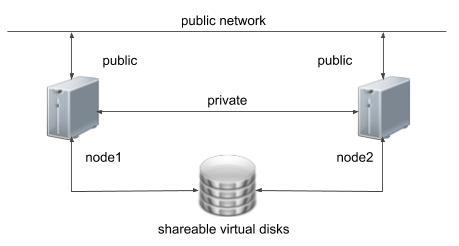
Before you launch into this installation, here are a few things to consider.
- The finished system includes the host operating system, two guest operating systems, two sets of Oracle Grid Infrastructure (Clusterware + ASM) and two Database instances all on a single server. As you can imagine, this requires a significant amount of disk space, CPU and memory.
- Following on from the last point, the VMs will each need at least 2G of RAM (3G for 11.2.0.2 onward), preferably 4G if you don't want the VMs to swap like crazy. As you can see, 11gR2 RAC requires much more memory than 11gR1 RAC. Don't assume you will be able to run this on a small PC or laptop. You won't.
- This procedure provides a bare bones installation to get the RAC working. There is no redundancy in the Grid Infrastructure installation or the ASM installation. To add this, simply create double the amount of shared disks and select the "Normal" redundancy option when it is offered. Of course, this will take more disk space.
- During the virtual disk creation, I always choose not to preallocate the disk space. This makes virtual disk access slower during the installation, but saves on wasted disk space. The shared disks must have their space preallocated.
- This is not, and should not be considered, a production-ready system. It's simply to allow you to get used to installing and using RAC.
- The Single Client Access Name (SCAN) should really be defined in the DNS or GNS and round-robin between one of 3 addresses, which are on the same subnet as the public and virtual IPs. In this article I've defined it as a single IP address in the "/etc/hosts" file, which is wrong and will cause the cluster verification to fail, but it allows me to complete the install without the presence of a DNS. This approach will not work if you are using 11.2.0.2 onward and you must use the DNS.
- The virtual machines can be limited to 2Gig of swap, which causes a prerequisite check failure, but doesn't prevent the installation working. If you want to avoid this, define 3+Gig of swap.
- This article uses the 64-bit versions of Oracle Linux and Oracle 11g Release 2.
Download Software
Download the following software.
VirtualBox Installation
First, install the VirtualBox software. On RHEL and its clones you do this with the following type of command as the root user.
# rpm -Uvh VirtualBox-4.2-4.2.6_82870_fedora17-1.x86_64.rpm
Once complete, VirtualBox is started from the "Applications > System Tools > Oracle VM VirtualBox" menu option.
Virtual Machine Setup
Now we must define the two virtual RAC nodes. We can save time by defining one VM, then cloning it when it is installed.
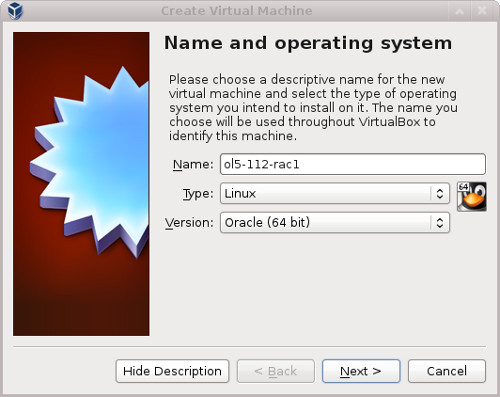
Start VirtualBox and click the "New" button on the toolbar. Enter the name "ol5-112-rac1", OS "Linux" and Version "Oracle (64 bit)", then click the "Next" button.
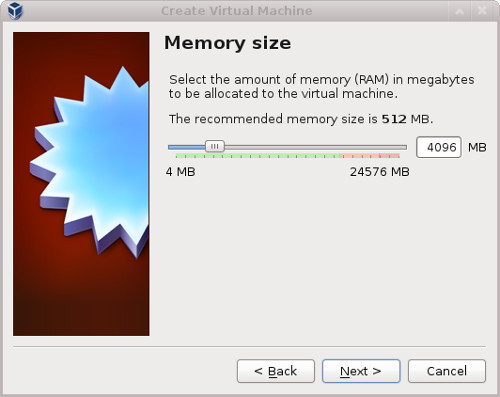
Enter "4096" as the base memory size, then click the "Next" button.
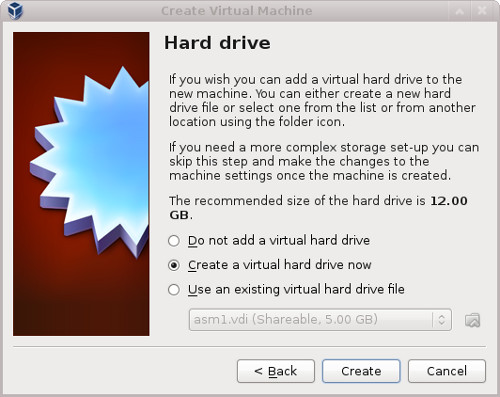
Accept the default option to create a new virtual hard disk by clicking the "Create" button.
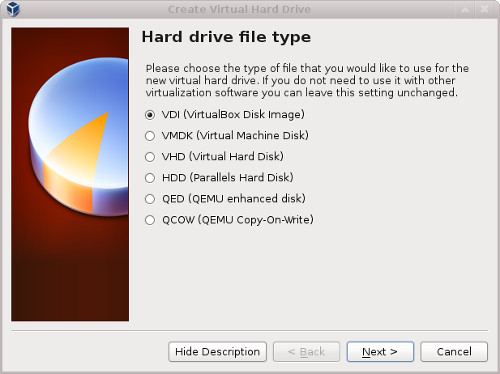
Acccept the default hard drive file type by clicking the "Next" button.
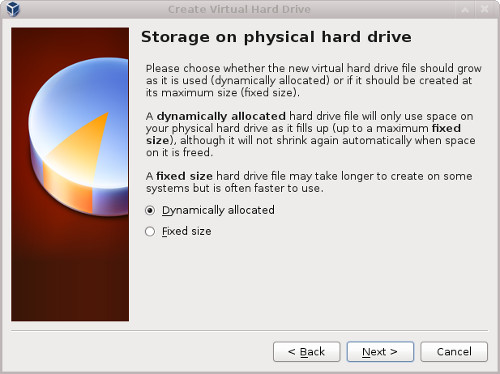
Acccept the "Dynamically allocated" option by clicking the "Next" button.
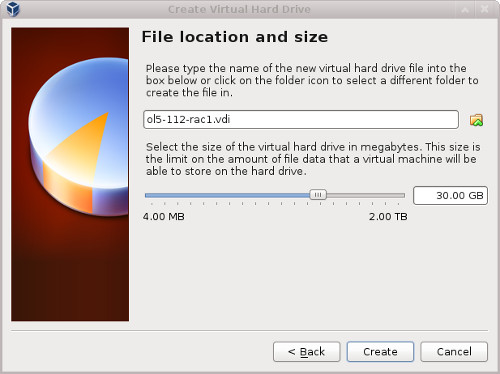
Accept the default location and set the size to "30G", then click the "Create" button. If you can spread the virtual disks onto different physical disks, that will improve performance.
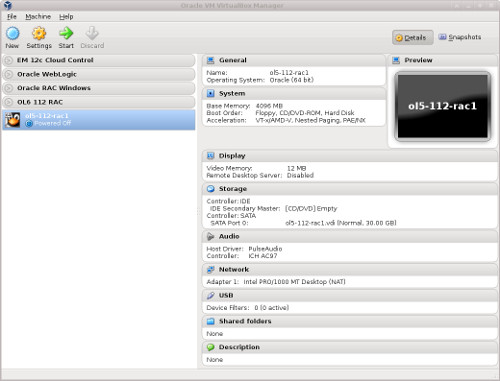
The "ol5-112-rac1" VM will appear on the left hand pane. Scroll down the "Details" tab on the right and click on the "Network" link.
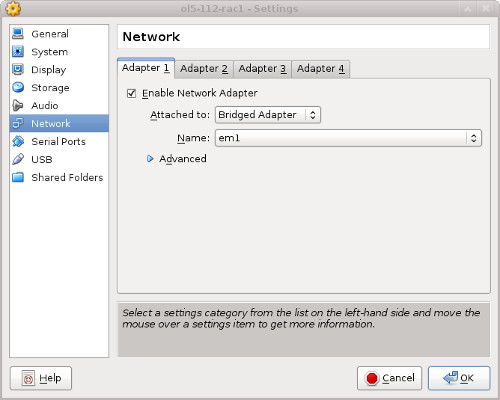
Make sure "Adapter 1" is enabled, set to "Bridged Adapter", then click on the "Adapter 2" tab.
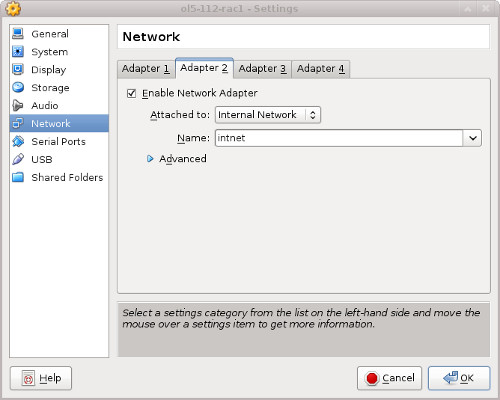
Make sure "Adapter 2" is enabled, set to "Bridged Adapter" or "Internal Network", then click on the "System" section.
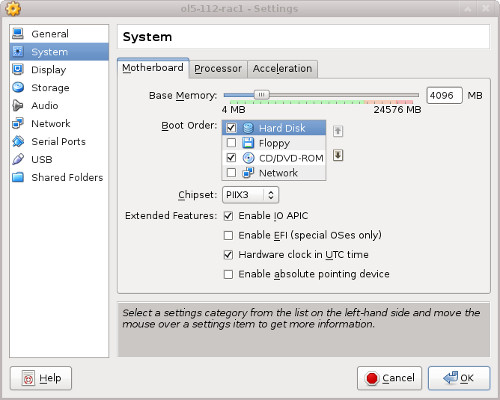
Move "Hard Disk" to the top of the boot order and uncheck the "Floppy" option, then click the "OK" button.
The virtual machine is now configured so we can start the guest operating system installation.
Guest Operating System Installation
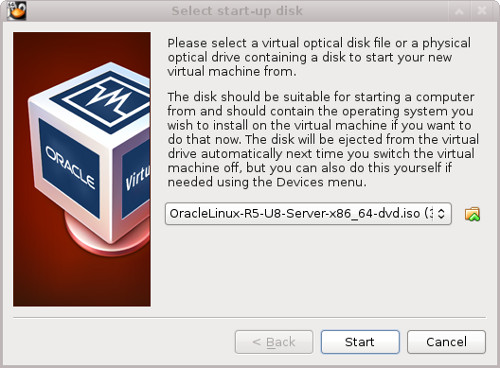
With the new VM highlighted, click the "Start" button on the toolbar. On the "Select start-updisk" screen, choose the relevant Oracle Linux ISO image and click the "Start" button.
The resulting console window will contain the Oracle Linux boot screen.
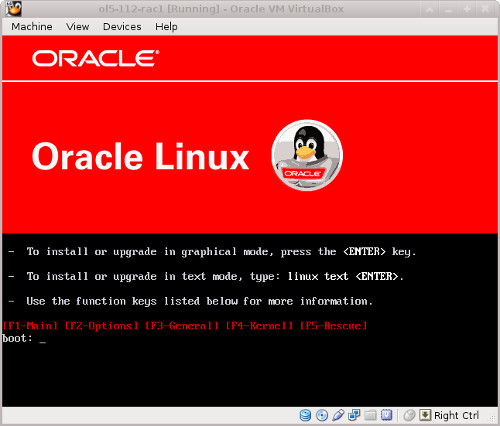
Continue through the Oracle Linux 5 installation as you would for a basic server. A general pictorial guide to the installation can be found here. More specifically, it should be a server installation with a minimum of 4G+ swap, firewall disabled, SELinux set to permissive and the following package groups installed:
- Desktop Environments > GNOME Desktop Environment
- Applications > Editors
- Applications > Graphical Internet
- Development > Development Libraries
- Development > Development Tools
- Servers > Server Configuration Tools
- Base System > Administration Tools
- Base System > Base
- Base System > System Tools
- Base System > X Window System
To be consistent with the rest of the article, the following information should be set during the installation:
- hostname: ol5-112-rac1.localdomain
- IP Address eth0: 192.168.0.101 (public address)
- Default Gateway eth0: 192.168.0.1 (public address)
- IP Address eth1: 192.168.1.101 (private address)
- Default Gateway eth1: none
You are free to change the IP addresses to suit your network, but remember to stay consistent with those adjustments throughout the rest of the article.
Oracle Installation Prerequisites
Perform either the Automatic Setup or the Manual Setup to complete the basic prerequisites. The Additional Setup is required for all installations.
Automatic Setup
If you plan to use the "oracle-validated" package to perform all your prerequisite setup, follow the instructions at http://public-yum.oracle.com to setup the yum repository for OL, then perform the following command.
# yum install oracle-validated
All necessary prerequisites will be performed automatically.
It is probably worth doing a full update as well, but this is not strictly speaking necessary.
# yum update
Manual Setup
If you have not used the "oracle-validated" package to perform all prerequisites, you will need to manually perform the following setup tasks.
In addition to the basic OS installation, the following packages must be installed whilst logged in as the root user. This includes the 64-bit and 32-bit versions of some packages.
# From Oracle Linux 5 DVD
cd /media/cdrom/Server
rpm -Uvh binutils-2.*
rpm -Uvh compat-libstdc++-33*
rpm -Uvh elfutils-libelf-0.*
rpm -Uvh elfutils-libelf-devel-*
rpm -Uvh gcc-4.*
rpm -Uvh gcc-c++-4.*
rpm -Uvh glibc-2.*
rpm -Uvh glibc-common-2.*
rpm -Uvh glibc-devel-2.*
rpm -Uvh glibc-headers-2.*
rpm -Uvh ksh-2*
rpm -Uvh libaio-0.*
rpm -Uvh libaio-devel-0.*
rpm -Uvh libgcc-4.*
rpm -Uvh libstdc++-4.*
rpm -Uvh libstdc++-devel-4.*
rpm -Uvh make-3.*
rpm -Uvh sysstat-7.*
rpm -Uvh unixODBC-2.*
rpm -Uvh unixODBC-devel-2.*

cd /
eject
Add or amend the following lines to the "/etc/sysctl.conf" file.
fs.aio-max-nr = 1048576
fs.file-max = 6815744
kernel.shmall = 2097152
kernel.shmmax = 1054504960
kernel.shmmni = 4096
# semaphores: semmsl, semmns, semopm, semmni
kernel.sem = 250 32000 100 128
net.ipv4.ip_local_port_range = 9000 65500
net.core.rmem_default=262144
net.core.rmem_max=4194304
net.core.wmem_default=262144
net.core.wmem_max=1048586
Run the following command to change the current kernel parameters.
/sbin/sysctl -p
Add the following lines to the "/etc/security/limits.conf" file.
oracle               soft    nproc   2047
oracle               hard    nproc   16384
oracle               soft    nofile  1024
oracle               hard    nofile  65536
Add the following lines to the "/etc/pam.d/login" file, if it does not already exist.
session required pam_limits.so
Create the new groups and users.
groupadd -g 1000 oinstall
groupadd -g 1200 dba
useradd -u 1100 -g oinstall -G dba oracle
passwd oracle
Create the directories in which the Oracle software will be installed.
mkdir -p  /u01/app/11.2.0/grid
mkdir -p /u01/app/oracle/product/11.2.0/db_1
chown -R oracle:oinstall /u01
chmod -R 775 /u01/
Additional Setup
Perform the following steps whilst logged into the "ol5-112-rac1" virtual machine as the root user.
Set the password for the "oracle" user.
passwd oracle
Install the following package from the Oracle grid media after you've defined groups.
cd /your/path/to/grid/rpm
rpm -Uvh cvuqdisk*
If you are not using DNS, the "/etc/hosts" file must contain the following information.
127.0.0.1       localhost.localdomain   localhost
# Public
192.168.0.101   ol5-112-rac1.localdomain        ol5-112-rac1
192.168.0.102   ol5-112-rac2.localdomain        ol5-112-rac2
# Private
192.168.1.101   ol5-112-rac1-priv.localdomain   ol5-112-rac1-priv
192.168.1.102   ol5-112-rac2-priv.localdomain   ol5-112-rac2-priv
# Virtual
192.168.0.103   ol5-112-rac1-vip.localdomain    ol5-112-rac1-vip
192.168.0.104   ol5-112-rac2-vip.localdomain    ol5-112-rac2-vip
# SCAN
192.168.0.105   ol5-112-scan.localdomain        ol5-112-scan
192.168.0.106   ol5-112-scan.localdomain        ol5-112-scan
192.168.0.107   ol5-112-scan.localdomain        ol5-112-scan
The SCAN address should not really be defined in the hosts file. Instead is should be defined on the DNS to round-robin between 3 addresses on the same subnet as the public IPs. For this installation, we will compromise and use the hosts file. This may cause problems if you are using 11.2.0.2 onward.
If you are using DNS, then only the first line needs to be present in the "/etc/hosts" file. The other entries are defined in the DNS, as described here. Having said that, I typically include all but the SCAN addresses.
Change the setting of SELinux to permissive by editing the "/etc/selinux/config" file, making sure the SELINUX flag is set as follows.
SELINUX=permissive
Alternatively, this alteration can be done using the GUI tool (System > Administration > Security Level and Firewall). Click on the SELinux tab and disable the feature.
If you have the Linux firewall enabled, you will need to disable or configure it, as shown here or here. The following is an example of disabling the firewall.
# service iptables stop
# chkconfig iptables off
Either configure NTP, or make sure it is not configured so the Oracle Cluster Time Synchronization Service (ctssd) can synchronize the times of the RAC nodes. If you want to deconfigure NTP do the following.
# service ntpd stop
Shutting down ntpd:                                        [  OK  ]
# chkconfig ntpd off
# mv /etc/ntp.conf /etc/ntp.conf.orig
# rm /var/run/ntpd.pid
If you want to use NTP, you must add the "-x" option into the following line in the "/etc/sysconfig/ntpd" file.
OPTIONS="-x -u ntp:ntp -p /var/run/ntpd.pid"
Then restart NTP.
# service ntpd restart
Create the directories in which the Oracle software will be installed.
mkdir -p  /u01/app/11.2.0/grid
mkdir -p /u01/app/oracle/product/11.2.0/db_1
chown -R oracle:oinstall /u01
chmod -R 775 /u01/
Login as the "oracle" user and add the following lines at the end of the "/home/oracle/.bash_profile" file.
# Oracle Settings
TMP=/tmp; export TMP
TMPDIR=$TMP; export TMPDIR

ORACLE_HOSTNAME=ol5-112-rac1.localdomain; export ORACLE_HOSTNAME
ORACLE_UNQNAME=RAC; export ORACLE_UNQNAME
ORACLE_BASE=/u01/app/oracle; export ORACLE_BASE
GRID_HOME=/u01/app/11.2.0/grid; export GRID_HOME
DB_HOME=$ORACLE_BASE/product/11.2.0/db_1; export DB_HOME
ORACLE_HOME=$DB_HOME; export ORACLE_HOME
ORACLE_SID=RAC1; export ORACLE_SID
ORACLE_TERM=xterm; export ORACLE_TERM
BASE_PATH=/usr/sbin:$PATH; export BASE_PATH
PATH=$ORACLE_HOME/bin:$BASE_PATH; export PATH

LD_LIBRARY_PATH=$ORACLE_HOME/lib:/lib:/usr/lib; export LD_LIBRARY_PATH
CLASSPATH=$ORACLE_HOME/JRE:$ORACLE_HOME/jlib:$ORACLE_HOME/rdbms/jlib; export CLASSPATH

alias grid_env='. /home/oracle/grid_env'
alias db_env='. /home/oracle/db_env'
Create a file called "/home/oracle/grid_env" with the following contents.
ORACLE_SID=+ASM1; export ORACLE_SID
ORACLE_HOME=$GRID_HOME; export ORACLE_HOME
PATH=$ORACLE_HOME/bin:$BASE_PATH; export PATH

LD_LIBRARY_PATH=$ORACLE_HOME/lib:/lib:/usr/lib; export LD_LIBRARY_PATH
CLASSPATH=$ORACLE_HOME/JRE:$ORACLE_HOME/jlib:$ORACLE_HOME/rdbms/jlib; export CLASSPATH
Create a file called "/home/oracle/db_env" with the following contents.
ORACLE_SID=RAC1; export ORACLE_SID
ORACLE_HOME=$DB_HOME; export ORACLE_HOME
PATH=$ORACLE_HOME/bin:$BASE_PATH; export PATH

LD_LIBRARY_PATH=$ORACLE_HOME/lib:/lib:/usr/lib; export LD_LIBRARY_PATH
CLASSPATH=$ORACLE_HOME/JRE:$ORACLE_HOME/jlib:$ORACLE_HOME/rdbms/jlib; export CLASSPATH
Once the "/home/oracle/.bash_profile" has been run, you will be able to switch between environments as follows.
$ grid_env
$ echo $ORACLE_HOME
/u01/app/11.2.0/grid
$ db_env
$ echo $ORACLE_HOME
/u01/app/oracle/product/11.2.0/db_1
$
We've made a lot of changes, so it's worth doing a reboot of the VM at this point to make sure all the changes have taken effect.
# shutdown -r now
Install Guest Additions
Log into the VM as the root user and add the "divider=10" option to the kernel boot options in "/etc/grub.conf" file to reduce the idle CPU load. The entry should look something like this.
# grub.conf generated by anaconda
#
# Note that you do not have to rerun grub after making changes to this file
# NOTICE:  You have a /boot partition.  This means that
#          all kernel and initrd paths are relative to /boot/, eg.
#          root (hd0,0)
#          kernel /vmlinuz-version ro root=/dev/VolGroup00/LogVol00
#          initrd /initrd-version.img
#boot=/dev/sda
default=0
timeout=5
splashimage=(hd0,0)/grub/splash.xpm.gz
hiddenmenu
title Oracle Linux Server (2.6.39-300.17.3.el5uek)
        root (hd0,0)
        kernel /vmlinuz-2.6.39-300.17.3.el5uek ro root=/dev/VolGroup00/LogVol00 rhgb quiet numa=off divider=10
        initrd /initrd-2.6.39-300.17.3.el5uek.img
title Oracle Linux Server (2.6.18-308.24.1.0.1.el5)
        root (hd0,0)
        kernel /vmlinuz-2.6.18-308.24.1.0.1.el5 ro root=/dev/VolGroup00/LogVol00 rhgb quiet numa=off divider=10
        initrd /initrd-2.6.18-308.24.1.0.1.el5.img
title Oracle Linux Server (2.6.32-300.10.1.el5uek)
        root (hd0,0)
        kernel /vmlinuz-2.6.32-300.10.1.el5uek ro root=/dev/VolGroup00/LogVol00 rhgb quiet numa=off divider=10
        initrd /initrd-2.6.32-300.10.1.el5uek.img
title Oracle Linux Server-base (2.6.18-308.el5)
        root (hd0,0)
        kernel /vmlinuz-2.6.18-308.el5 ro root=/dev/VolGroup00/LogVol00 rhgb quiet numa=off divider=10
        initrd /initrd-2.6.18-308.el5.img
Click on the "Devices > Install Guest Additions" menu option at the top of the VM screen, then run the following commands.
cd /media/VBOXADDITIONS_4.2.6_82870
sh ./VBoxLinuxAdditions-amd64.run
The VM will need to be restarted for the additions to be used properly. The next section requires a shutdown so no additional restart is needed at this time.
Create Shared Disks
Shut down the "ol5-112-rac1" virtual machine using the following command.
# shutdown -h now
On the host server, create 4 sharable virtual disks and associate them as virtual media using the following commands. You can pick a different location, but make sure they are outside the existing VM directory.
$ mkdir -p /u04/VirtualBox/ol5-112-rac
$ cd /u04/VirtualBox/ol5-112-rac
$
$ # Create the disks and associate them with VirtualBox as virtual media.
$ VBoxManage createhd --filename asm1.vdi --size 5120 --format VDI --variant Fixed
$ VBoxManage createhd --filename asm2.vdi --size 5120 --format VDI --variant Fixed
$ VBoxManage createhd --filename asm3.vdi --size 5120 --format VDI --variant Fixed
$ VBoxManage createhd --filename asm4.vdi --size 5120 --format VDI --variant Fixed
$
$ # Connect them to the VM.
$ VBoxManage storageattach ol5-112-rac1 --storagectl "SATA" --port 1 --device 0 --type hdd \
    --medium asm1.vdi --mtype shareable
$ VBoxManage storageattach ol5-112-rac1 --storagectl "SATA" --port 2 --device 0 --type hdd \
    --medium asm2.vdi --mtype shareable
$ VBoxManage storageattach ol5-112-rac1 --storagectl "SATA" --port 3 --device 0 --type hdd \
    --medium asm3.vdi --mtype shareable
$ VBoxManage storageattach ol5-112-rac1 --storagectl "SATA" --port 4 --device 0 --type hdd \
    --medium asm4.vdi --mtype shareable
$
$ # Make shareable.
$ VBoxManage modifyhd asm1.vdi --type shareable
$ VBoxManage modifyhd asm2.vdi --type shareable
$ VBoxManage modifyhd asm3.vdi --type shareable
$ VBoxManage modifyhd asm4.vdi --type shareable
Start the "ol5-112-rac1" virtual machine by clicking the "Start" button on the toolbar. When the server has started, log in as the root user so you can configure the shared disks. The current disks can be seen by issuing the following commands.
# cd /dev
# ls sd*
sda  sda1  sda2  sdb  sdc  sdd  sde
#
Use the "fdisk" command to partition the disks sdb to sde. The following output shows the expected fdisk output for the sdb disk.
# fdisk /dev/sdb
Device contains neither a valid DOS partition table, nor Sun, SGI or OSF disklabel
Building a new DOS disklabel. Changes will remain in memory only,
until you decide to write them. After that, of course, the previous
content won't be recoverable.


The number of cylinders for this disk is set to 1305.
There is nothing wrong with that, but this is larger than 1024,
and could in certain setups cause problems with:
1) software that runs at boot time (e.g., old versions of LILO)
2) booting and partitioning software from other OSs
   (e.g., DOS FDISK, OS/2 FDISK)
Warning: invalid flag 0x0000 of partition table 4 will be corrected by w(rite)

Command (m for help): n
Command action
   e   extended
   p   primary partition (1-4)
p
Partition number (1-4): 1
First cylinder (1-1305, default 1):
Using default value 1
Last cylinder or +size or +sizeM or +sizeK (1-1305, default 1305):
Using default value 1305

Command (m for help): p

Disk /dev/sdb: 10.7 GB, 10737418240 bytes
255 heads, 63 sectors/track, 1305 cylinders
Units = cylinders of 16065 * 512 = 8225280 bytes

   Device Boot      Start         End      Blocks   Id  System
/dev/sdb1               1        1305    10482381   83  Linux

Command (m for help): w
The partition table has been altered!

Calling ioctl() to re-read partition table.
Syncing disks.
#
In each case, the sequence of answers is "n", "p", "1", "Return", "Return", "p" and "w".
Once all the disks are partitioned, the results can be seen by repeating the previous "ls" command.
# cd /dev
# ls sd*
sda  sda1  sda2  sdb  sdb1  sdc  sdc1  sdd  sdd1  sde  sde11
#
Determine your current kernel.
# uname -rm
2.6.39-300.17.3.el5uek x86_64
#
If you prefer using UDEV over ASMLib, you can ignore the rest of this section. An example of UDEV setup is shown here.
Download the appropriate ASMLib RPMs from OTN. If you are using the UEK the ASMLib kernel module is present already. For RHEL kernel we would need all three of the following:
- oracleasm-support-2.1.7-1.el5.i386.rpm
- oracleasmlib-2.0.4-1.el5.i386.rpm
- oracleasm-[your-kernel-version].rpm
Install the packages using the following command.
rpm -Uvh oracleasm*.rpm
Configure ASMLib using the following command.
# oracleasm configure -i
Configuring the Oracle ASM library driver.

This will configure the on-boot properties of the Oracle ASM library
driver.  The following questions will determine whether the driver is
loaded on boot and what permissions it will have.  The current values
will be shown in brackets ('[]').  Hitting <ENTER> without typing an
answer will keep that current value.  Ctrl-C will abort.

Default user to own the driver interface []: oracle
Default group to own the driver interface []: dba
Start Oracle ASM library driver on boot (y/n) [n]: y
Scan for Oracle ASM disks on boot (y/n) [y]:
Writing Oracle ASM library driver configuration: done
#
Load the kernel module using the following command.
# /usr/sbin/oracleasm init
Loading module "oracleasm": oracleasm
Mounting ASMlib driver filesystem: /dev/oracleasm
#
If you have any problems, run the following command to make sure you have the correct version of the driver.
# /usr/sbin/oracleasm update-driver
Mark the five shared disks as follows.
# /usr/sbin/oracleasm createdisk DISK1 /dev/sdb1
Writing disk header: done
Instantiating disk: done
# /usr/sbin/oracleasm createdisk DISK2 /dev/sdc1
Writing disk header: done
Instantiating disk: done
# /usr/sbin/oracleasm createdisk DISK3 /dev/sdd1
Writing disk header: done
Instantiating disk: done
# /usr/sbin/oracleasm createdisk DISK4 /dev/sde1
Writing disk header: done
Instantiating disk: done
#
It is unnecessary, but we can run the "scandisks" command to refresh the ASM disk configuration.
# /usr/sbin/oracleasm scandisks
Reloading disk partitions: done
Cleaning any stale ASM disks...
Scanning system for ASM disks...
#
We can see the disk are now visible to ASM using the "listdisks" command.
# /usr/sbin/oracleasm listdisks
DISK1
DISK2
DISK3
DISK4
#
The shared disks are now configured for the grid infrastructure.
Clone the Virtual Machine
Later versions of VirtualBox allow you to clone VMs, but these also attempt to clone the shared disks, which is not what we want. Instead we must manually clone the VM.
Shut down the "ol5-112-rac1" virtual machine using the following command.
# shutdown -h now
Manually clone the ol5-112-rac1.vdi disk using the following commands on the host server.
$ mkdir -p /u03/VirtualBox/ol5-112-rac2
$ VBoxManage clonehd /u01/VirtualBox/ol5-112-rac1/ol5-112-rac1.vdi /u03/VirtualBox/ol5-112-rac2/ol5-112-rac2.vdi
Create the "ol5-112-rac2" virtual machine in VirtualBox in the same way as you did for "ol5-112-rac1", with the exception of using an existing "ol5-112-rac2.vdi" virtual hard drive.
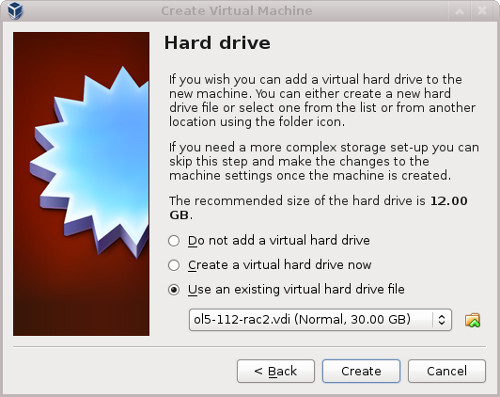
Remember to add the second network adaptor as you did on the "ol5-112-rac1" VM. When the VM is created, attach the shared disks to this VM.
$ cd /u04/VirtualBox/ol5-112-rac
$
$ VBoxManage storageattach ol5-112-rac2 --storagectl "SATA" --port 1 --device 0 --type hdd \
    --medium asm1.vdi --mtype shareable
$ VBoxManage storageattach ol5-112-rac2 --storagectl "SATA" --port 2 --device 0 --type hdd \
    --medium asm2.vdi --mtype shareable
$ VBoxManage storageattach ol5-112-rac2 --storagectl "SATA" --port 3 --device 0 --type hdd \
    --medium asm3.vdi --mtype shareable
$ VBoxManage storageattach ol5-112-rac2 --storagectl "SATA" --port 4 --device 0 --type hdd \
    --medium asm4.vdi --mtype shareable
Start the "ol5-112-rac2" virtual machine by clicking the "Start" button on the toolbar. Ignore any network errors during the startup.
Log in to the "ol5-112rac2" virtual machine as the "root" user so we can reconfigure the network settings to match the following.
- hostname: ol6-112-rac2.localdomain
- IP Address eth0: 192.168.0.102 (public address)
- Default Gateway eth0: 192.168.0.1 (public address)
- IP Address eth1: 192.168.1.102 (private address)
- Default Gateway eth1: none
Amend the hostname in the "/etc/sysconfig/network" file.
NETWORKING=yes
HOSTNAME=ol5-112-rac2.localdomain
Check the MAC address of each of the available network connections. These are dynamically created connections.
# ifconfig -a | grep eth
eth0      Link encap:Ethernet  HWaddr 08:00:27:95:ED:33
eth1      Link encap:Ethernet  HWaddr 08:00:27:E3:DA:B6
#
Remove the current "ifcfg-eth0" and "ifcfg-eth1" scripts and rename the original scripts from the backup names. # cd /etc/sysconfig/network-scripts/ # rm ifcfg-eth0 ifcfg-eth1 # mv ifcfg-eth0.bak ifcfg-eth0 # mv ifcfg-eth1.bak ifcfg-eth1
Edit the "/etc/sysconfig/network-scripts/ifcfg-eth0", amending only the IPADDR and HWADDR settings as follows.
HWADDR=08:00:27:95:ED:33
IPADDR=192.168.0.102
Edit the "/etc/sysconfig/network-scripts/ifcfg-eth1", amending only the IPADDR and HWADDR settings as follows.
HWADDR=08:00:27:E3:DA:B6
IPADDR=192.168.1.102
Edit the "/home/oracle/.bash_profile" file on the "ol5-112-rac2" node to correct the ORACLE_SID and ORACLE_HOSTNAME values.
ORACLE_SID=RAC2; export ORACLE_SID
ORACLE_HOSTNAME=ol5-112-rac2.localdomain; export ORACLE_HOSTNAME
Also, amend the ORACLE_SID setting in the "/home/oracle/db_env" and "/home/oracle/grid_env" files.
Restart the "ol5-112-rac2" virtual machine and start the "ol5-112-rac1" virtual machine. When both nodes have started, check they can both ping all the public and private IP addresses using the following commands.
ping -c 3 ol5-112-rac1
ping -c 3 ol5-112-rac1-priv
ping -c 3 ol5-112-rac2
ping -c 3 ol5-112-rac2-priv
At this point the virtual IP addresses defined in the "/etc/hosts" file will not work, so don't bother testing them.
Check the candidate ASM disks are visible on the second node using the "listdisks" command. For some reason, this doesn't seem to happen on my OL5.8 installations, so you may need to repeat the ASMLib configuration on the second node if the output of the following command is not consistent on both nodes.
# /usr/sbin/oracleasm listdisks
DISK1
DISK2
DISK3
DISK4
#
Prior to 11gR2 we would probably use the "runcluvfy.sh" utility in the clusterware root directory to check the prerequisites have been met. If you are intending to configure SSH connectivity using the installer this check should be omitted as it will always fail. If you want to setup SSH connectivity manually, then once it is done you can run the "runcluvfy.sh" with the following command.
/mountpoint/clusterware/runcluvfy.sh stage -pre crsinst -n ol5-112-rac1,ol5-112-rac2 -verbose
If you get any failures be sure to correct them before proceeding.
The virtual machine setup is now complete.
Before moving forward you should probably shut down your VMs and take snapshots of them. If any failures happen beyond this point it is probably better to switch back to those snapshots, clean up the shared drives and start the grid installation again. An alternative to cleaning up the shared disks is to back them up now using zip and just replace them in the event of a failure.
$ cd /u04/VirtualBox/ol5-112-rac
$ zip PreGrid.zip *.vdi
Install the Grid Infrastructure
Make sure the "ol5-112-rac1" and "ol5-112-rac2" virtual machines are started, then login to "ol5-112-rac1" as the oracle user and start the Oracle installer.
$ cd /host/software/oracle/11gR2/linux64_grid
$ ./runInstaller
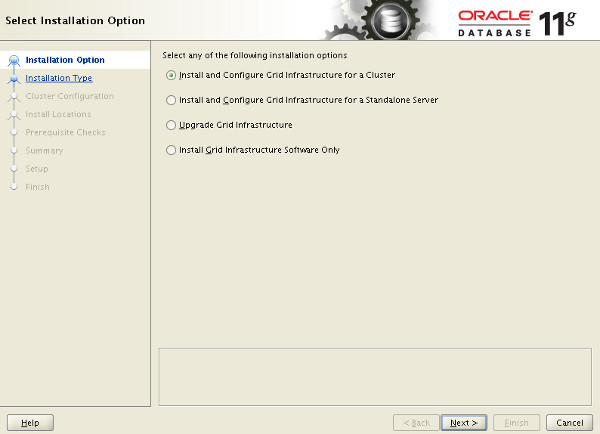
Select the "Install and Configure Grid Infrastructure for a Cluster" option, then click the "Next" button.
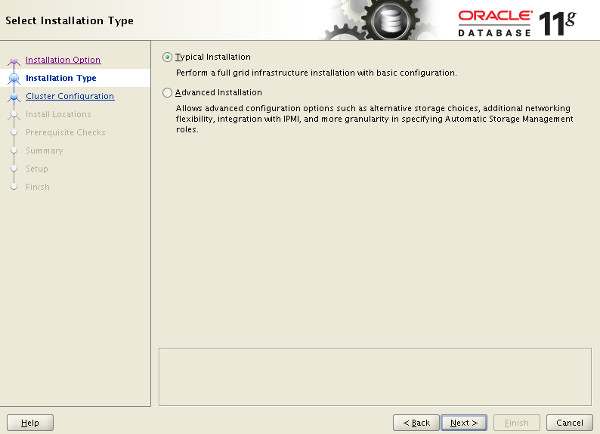
Select the "Typical Installation" option, then click the "Next" button.
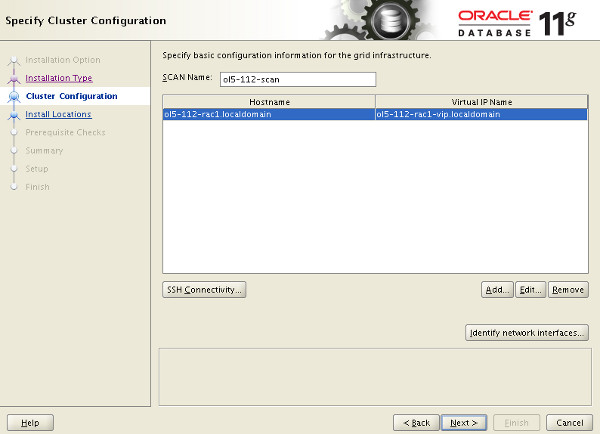
On the "Specify Cluster Configuration" screen, enter the SCAN name and click the "Add" button.
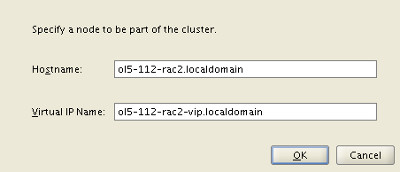
Enter the details of the second node in the cluster, then click the "OK" button.
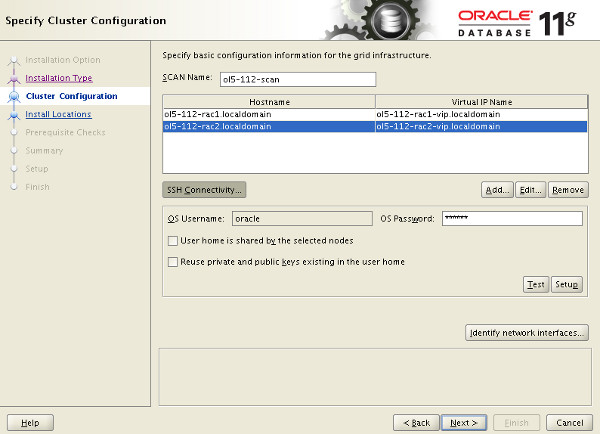
Click the "SSH Connectivity..." button and enter the password for the "oracle" user. Click the "Setup" button to to configure SSH connectivity, and the "Test" button to test it once it is complete.
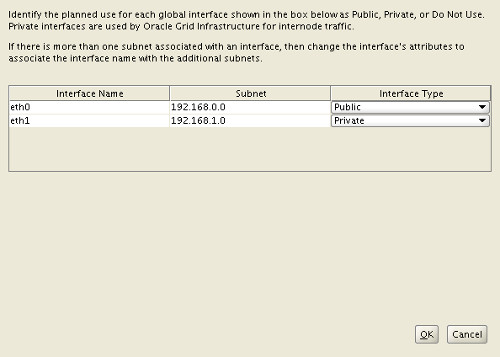
Click the "Identify network interfaces..." button and check the public and private networks are specified correctly. Once you are happy with them, click the "OK" button and the "Next" button on the previous screen.
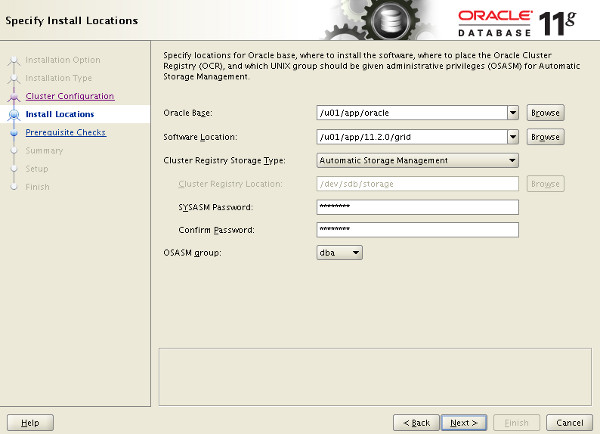
Enter "/u01/app/11.2.0/grid" as the software location and "Automatic Storage Manager" as the cluster registry storage type. Enter the ASM password and click the "Next" button.
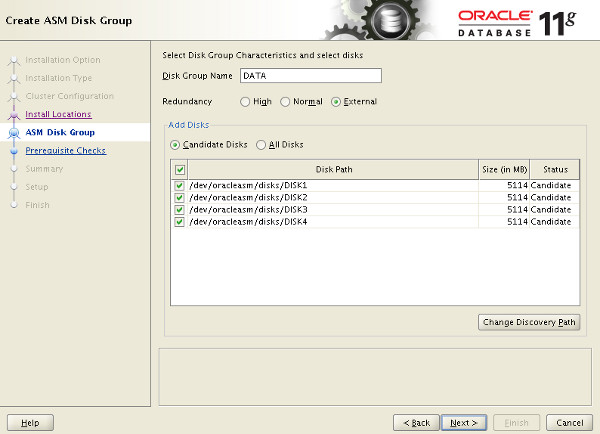
Set the redundancy to "External". if the ASM disks are not displayed, click the "Change Discovery Path" button and enter "/dev/oracleasm/disks/*" and click the "OK" button. Select all 5 disks and click the "Next" button.
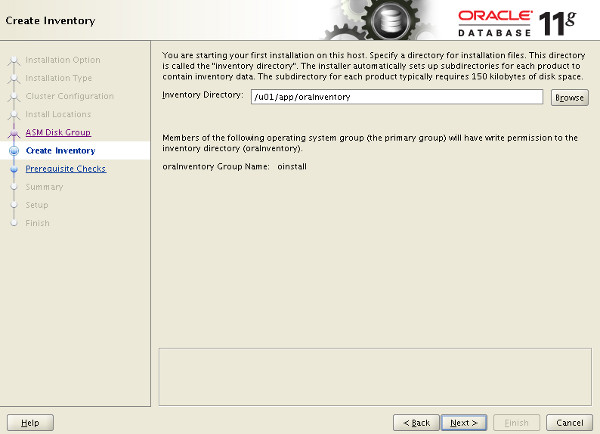
Accept the default inventory directory by clicking the "Next" button.
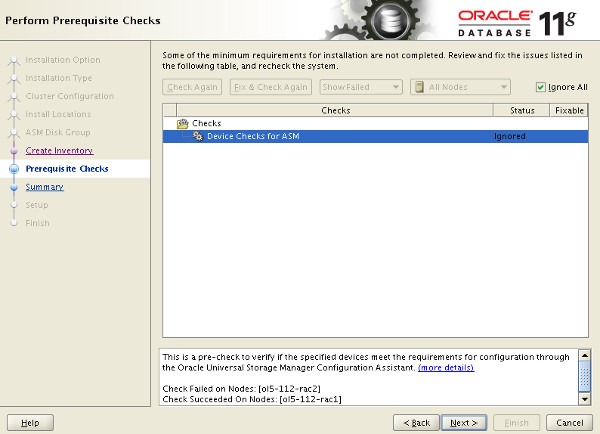
Wait while the prerequisite checks complete. If you have any issues, either fix them or check the "Ignore All" checkbox and click the "Next" button.
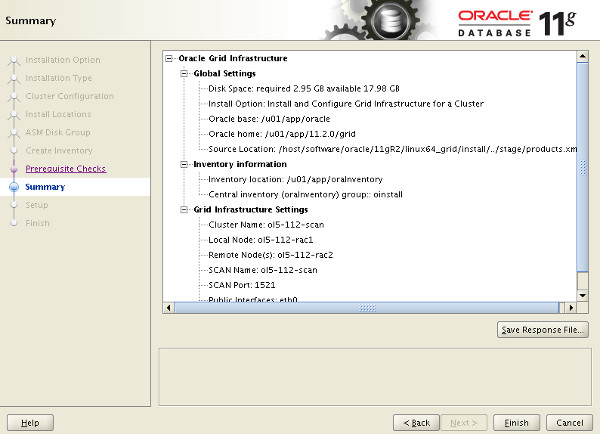
If you are happy with the summary information, click the "Finish" button.
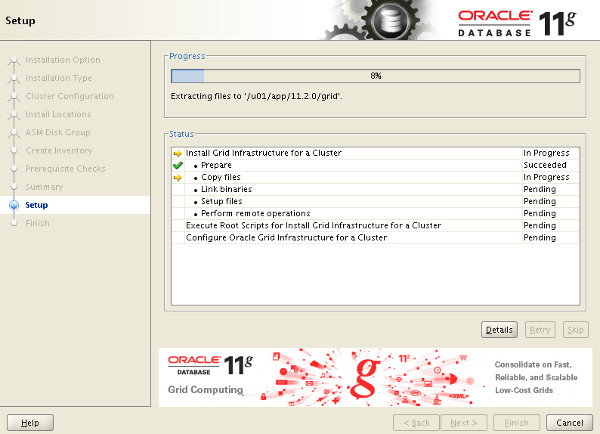
Wait while the setup takes place.
When prompted, run the configuration scripts on each node.
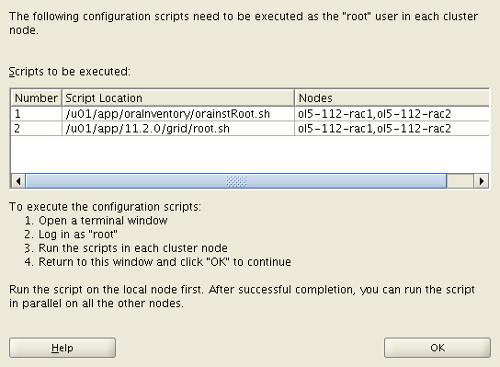
The output from the "orainstRoot.sh" file should look something like that listed below.
# cd /u01/app/oraInventory
# ./orainstRoot.sh
Changing permissions of /u01/app/oraInventory.
Adding read,write permissions for group.
Removing read,write,execute permissions for world.

Changing groupname of /u01/app/oraInventory to oinstall.
The execution of the script is complete.
#
The output of the root.sh will vary a little depending on the node it is run on. Example output can be seen here (Node1, Node2).
Once the scripts have completed, return to the "Execute Configuration Scripts" screen on "rac1" and click the "OK" button.
Wait for the configuration assistants to complete.
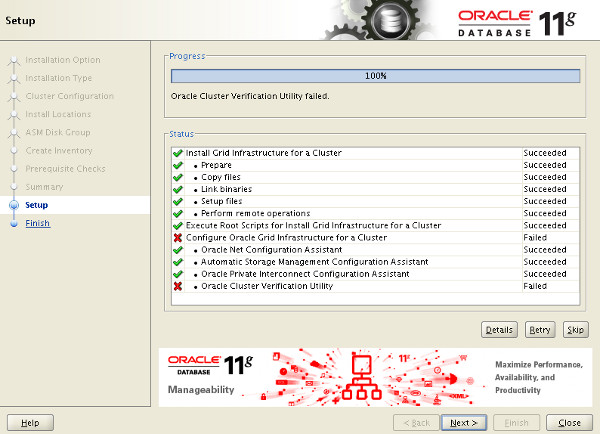
We expect the verification phase to fail with an error relating to the SCAN, assuming you are not using DNS.
INFO: Checking Single Client Access Name (SCAN)...
INFO: Checking name resolution setup for "rac-scan.localdomain"...
INFO: ERROR:
INFO: PRVF-4664 : Found inconsistent name resolution entries for SCAN name "rac-scan.localdomain"
INFO: ERROR:
INFO: PRVF-4657 : Name resolution setup check for "rac-scan.localdomain" (IP address: 192.168.2.201) failed
INFO: ERROR:
INFO: PRVF-4664 : Found inconsistent name resolution entries for SCAN name "rac-scan.localdomain"
INFO: Verification of SCAN VIP and Listener setup failed
Provided this is the only error, it is safe to ignore this and continue by clicking the "Next" button.
Click the "Close" button to exit the installer.
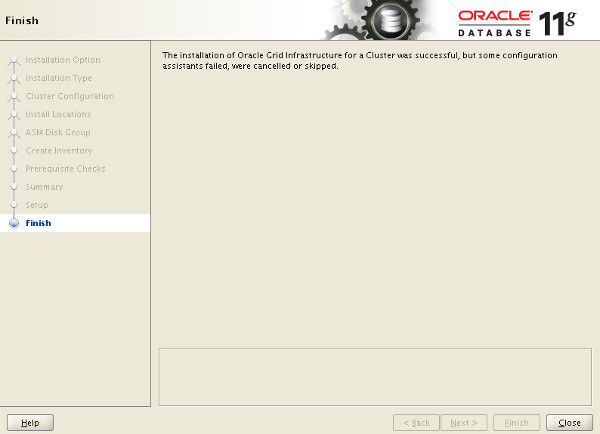
The grid infrastructure installation is now complete.
Install the Database
Make sure the "ol5-112-rac1" and "ol5-112-rac2" virtual machines are started, then login to "ol5-112-rac1" as the oracle user and start the Oracle installer.
$ cd /host/software/oracle/11gR2/linux64_database
$ ./runInstaller
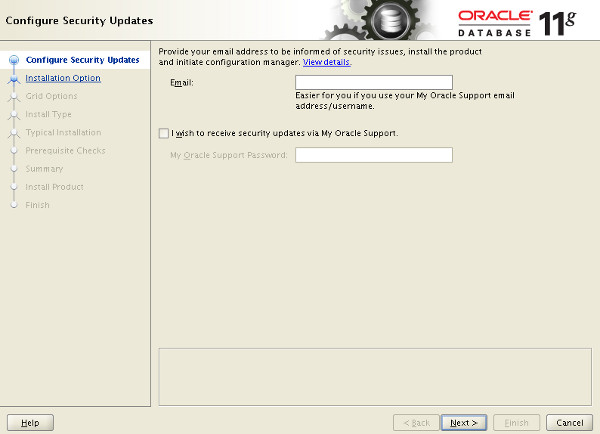
Uncheck the security updates checkbox and click the "Next" button.
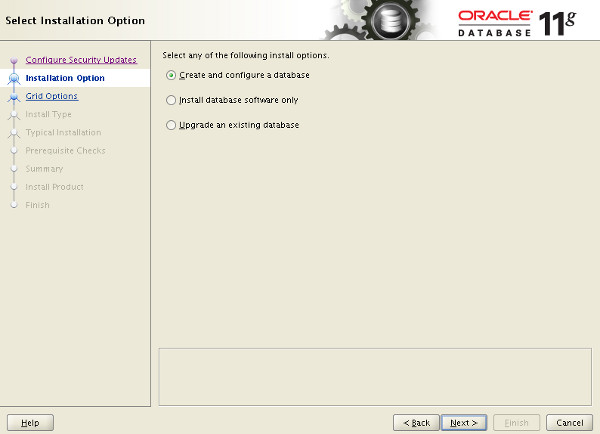
Accept the "Create and configure a database" option by clicking the "Next" button.
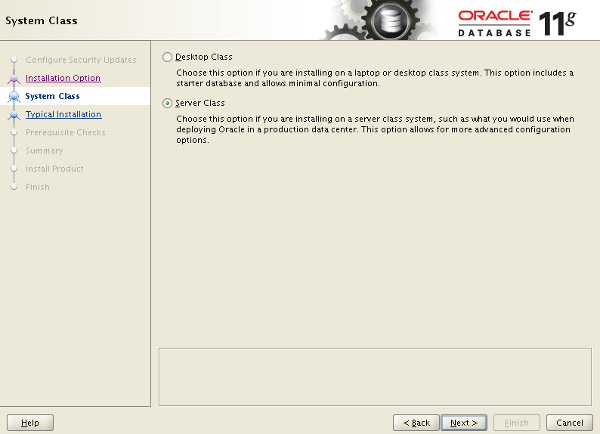
Accept the "Server Class" option by clicking the "Next" button.
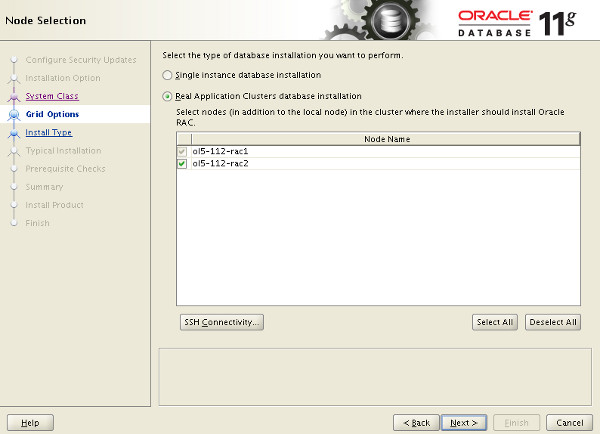
Make sure both nodes are selected, then click the "Next" button.
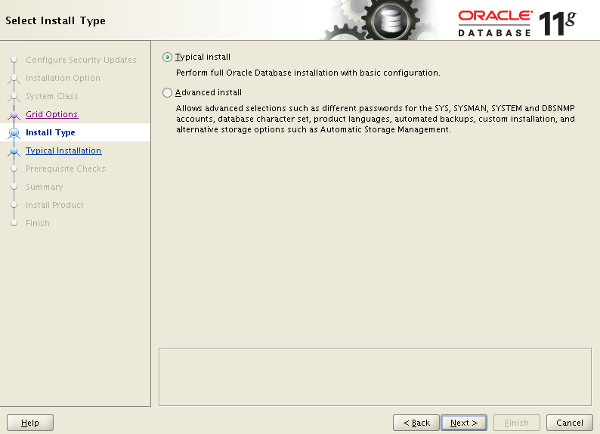
Accept the "Typical install" option by clicking the "Next" button.
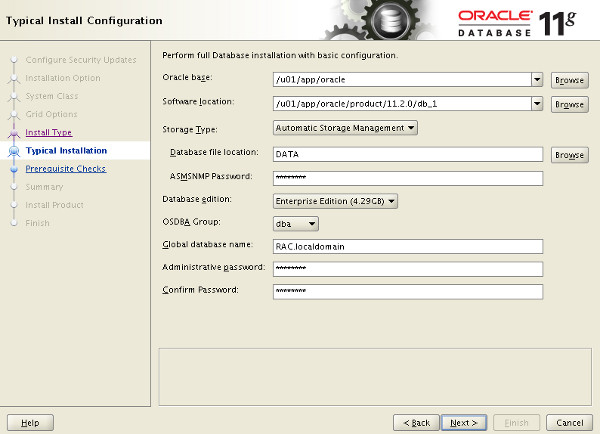
Enter "/u01/app/oracle/product/11.2.0/db_1" for the software location. The storage type should be set to "Automatic Storage Manager". Enter the appropriate passwords and database name, in this case "RAC.localdomain".
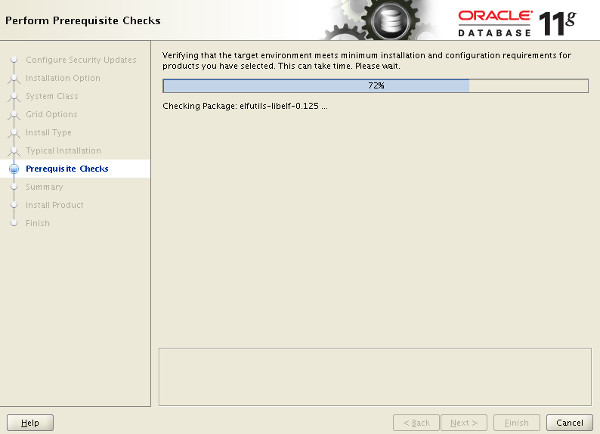
Wait for the prerequisite check to complete. If there are any problems either fix them, or check the "Ignore All" checkbox and click the "Next" button.
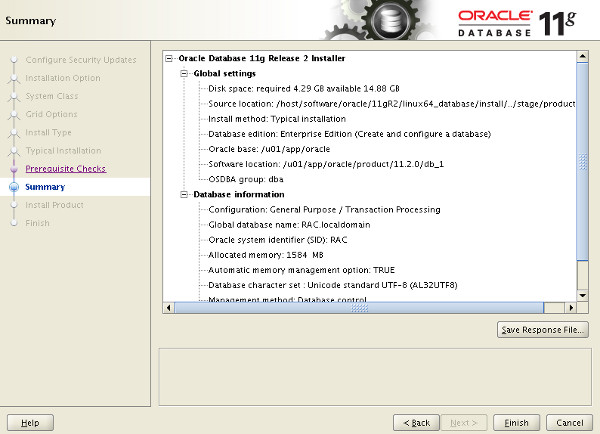
If you are happy with the summary information, click the "Finish" button.
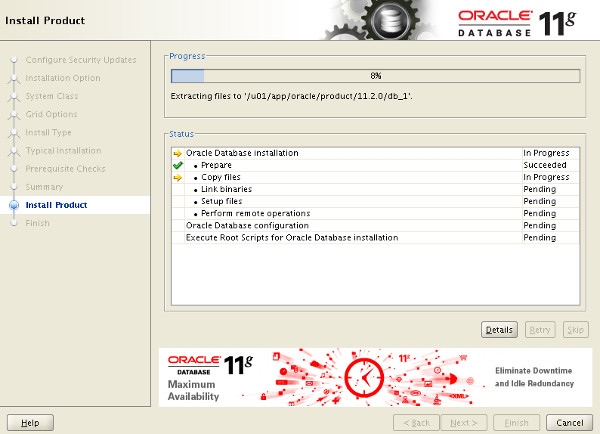
Wait while the installation takes place.
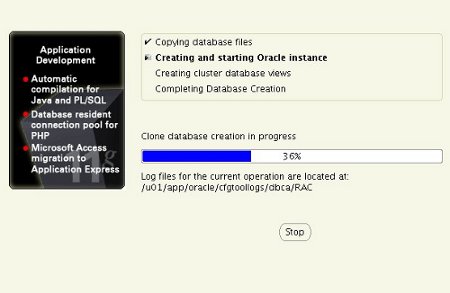
Once the software installation is complete the Database Configuration Assistant (DBCA) will start automatically.
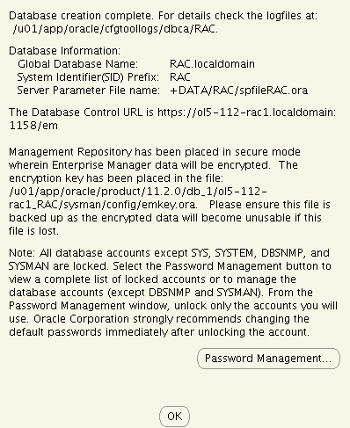
Once the Database Configuration Assistant (DBCA) has finished, click the "OK" button.
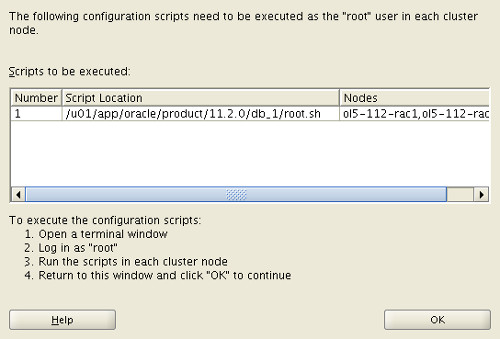
When prompted, run the configuration scripts on each node. When the scripts have been run on each node, click the "OK" button.
Click the "Close" button to exit the installer.
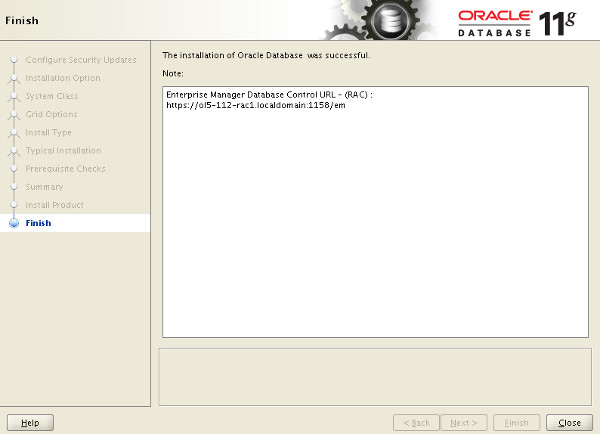
The RAC database creation is now complete.
Check the Status of the RAC
There are several ways to check the status of the RAC. The srvctl utility shows the current configuration and status of the RAC database.
$ srvctl config database -d RAC
Database unique name: RAC
Database name: RAC
Oracle home: /u01/app/oracle/product/11.2.0/db_1
Oracle user: oracle
Spfile: +DATA/RAC/spfileRAC.ora
Domain: localdomain
Start options: open
Stop options: immediate
Database role: PRIMARY
Management policy: AUTOMATIC
Server pools: RAC
Database instances: RAC1,RAC2
Disk Groups: DATA
Services:
Database is administrator managed
$

$ srvctl status database -d RAC
Instance RAC1 is running on node ol5-112-rac1
Instance RAC2 is running on node ol5-112-rac2
$
The V$ACTIVE_INSTANCES view can also display the current status of the instances.
$ sqlplus / as sysdba

SQL*Plus: Release 11.2.0.1.0 Production on Sat Sep 26 19:04:19 2009

Copyright (c) 1982, 2009, Oracle.  All rights reserved.


Connected to:
Oracle Database 11g Enterprise Edition Release 11.2.0.1.0 - 64bit Production
With the Partitioning, Real Application Clusters, Automatic Storage Management, OLAP,
Data Mining and Real Application Testing options

SQL> SELECT inst_name FROM v$active_instances;

INST_NAME
--------------------------------------------------------------------------------
ol5-112-rac1.localdomain:RAC1
ol5-112-rac2.localdomain:RAC2

SQL>
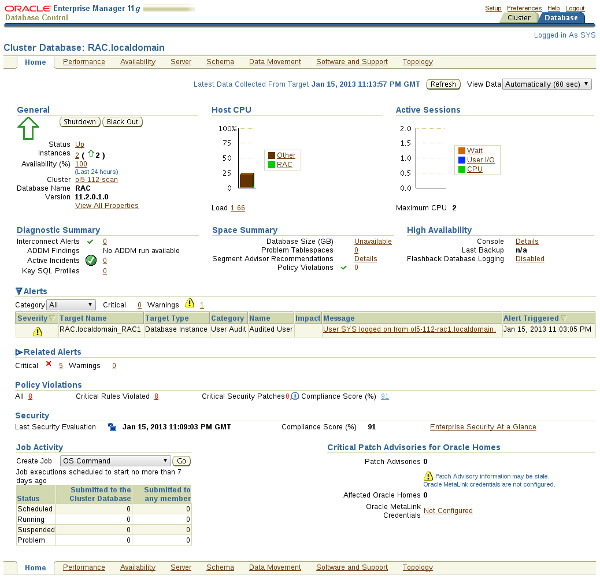
If you have configured Enterprise Manager, it can be used to view the configuration and current status of the database using a URL like "https://ol5-112-rac1.localdomain:1158/em".
For more information see:
- Grid Infrastructure Installation Guide for Linux
- Real Application Clusters Installation Guide for Linux and UNIX
- Oracle Database 11g Release 2 (11.2.0.3.0) RAC On Oracle Linux 6.3 Using VirtualBox
- Oracle Database 11g Release 2 RAC On Windows 2008 Using VirtualBox
Hope this helps. Regards Tim...