8i | 9i | 10g | 11g | 12c | 13c | 18c | 19c | 21c | 23c | Misc | PL/SQL | SQL | RAC | WebLogic | Linux
Home » Here
About Tim Hall and the Website
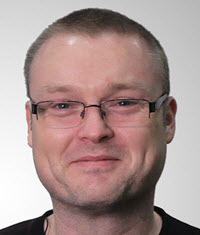
Tim Hall
DBA, Developer, Author, Trainer
Birmingham, UK
 |
Quotes: "The harder I work, the luckier I get." "If you trust in yourself and believe in your dreams and follow your star you'll still get beaten by people who spent their time working hard and learning things and weren't so lazy." "There’s a billion places like home. But only one of 'em's where you live." "If there's one thing I've learnt about experts, they're experts on f*ck all!" |
Tim Hall is an Oracle Certified Professional (OCP) DBA/Developer, Oracle ACE Director, Oracle Groundbreaker Ambassador, OakTable Network member and was chosen as Oracle ACE of the Year 2006 by Oracle Magazine Editors Choice Awards. He has been involved in DBA, design and development work with Oracle databases since 1995.
Although focusing on database administration and PL/SQL development, he has gained a wide knowledge of the Oracle software stack and has worked as a consultant for several multi-national companies on projects ranging from real-time control systems to OLTP web applications.
Since 2000 Tim has published over 1,000 articles on his website (oracle-base.com) covering a wide range of Oracle features.
In his spare time Tim enjoys watching movies, reading and takes part in a number of activities including Yoga and going to the gym.
Certifications and Awards
- Oracle ACE Director
- Oracle Code One Star - Oracle Code One 2018
- UKOUG Lifetime Achievement Award 2018
- Best UK Speaker Award - UKOUG Tech 2014, 2017
- Oracle ACE of the Year 2006 by Oracle Magazine Editors Choice Awards.
- OakTable Network Member
- Oracle Autonomous Database Cloud 2019 Specialist
- Oracle Database Administrator Certified Professional (OCP) (7, 8, 8i, 9i, 10g, 11g, 12c)
- Oracle Advanced PL/SQL Developer Certified Professional (OCP)
- Oracle Database: SQL Certified Expert
- Former Oracle Groundbreaker Ambassador. Now merged with the Oracle ACE program.
- Former Oracle Developer Champion. Now merged with the Oracle ACE program.
 |
 |
 |

|  |
 |
 |
|||
 |
 |
 |
||
 |
 |
 |
Publications
- 1000+ articles (oracle-base.com) 2000 - Present
- Public Speaking (UKOUG Oracle Scene Magazine) 2013
- Oracle PL/SQL Tuning (Rampant TechPress) 2006
- Using PL/SQL Arrays for Lookup Tables (IOUG SELECT Journal) 2005
- Oracle Job Scheduling (Rampant TechPress) 2005
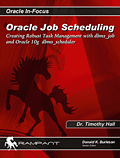 Oracle Job Scheduling (2005) (read reviews) |
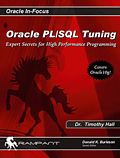 Oracle PL/SQL Tuning (2006) (read reviews) |
Conferences and Teaching Dates
| Date | Location | Organisation | Description |
|---|---|---|---|
| October2023 | Birmingham, UK | BCU | Birmingham City University MSc Student Talks |
| July 2023 | Birmingham, UK | BCU | Birmingham City University MSc Student Talks |
| Nov 2022 | Birmingham, UK | BCU | Birmingham City University MSc Student Talks |
| Nov 2020 | USA, Online | ECO | East Coast Oracle Users Conference 2020 |
| Oct 2020 | Asia Pacific, Online | APAC | Oracle Groundbreakers Tour APAC Virtual Tour |
| Oct 2020 | Spain, Online | SPOUG | SPOUG20 Conference |
| Oct 2020 | Croatia, Online | HrOUG | Oracle Groundbreakers Tour EMEA Virtual Tour |
| Aug 2020 | Latin America, Online | LAOUC | Oracle Groundbreakers Tour Latin America Virtual Tour |
| July 2020 | India, Online | AIOUG | Oracle Groundbreakers Yatra 2020 Virtual Tour |
| Apr 2020 | UK, Online | UKOUG | UKOUG Tech Summit |
| Sep 2019 | San Francisco, USA | Oracle OpenWorld and Code One | Conference |
| Apr 2019 | Dublin, Ireland | OUGI | Conference |
| Feb 2019 | Antwerp, Belgium | OBUG | Belgian Tech Days 2019 |
| Dec 2018 | Liverpool, UK | UKOUG | Conference |
| Nov 2018 | Birmingham, UK | BCU | Birmingham City University CS Student Talks |
| Nov 2018 | Bulgaria | BGOUG | Conference |
| Oct 2018 | San Francisco, USA | Oracle OpenWorld and Code One | Conference |
| Aug 2018 | Mexico DF, Mexico | ODC Latin America Tour (Northern Leg) | Conference |
| Aug 2018 | Panama, Panama | ODC Latin America Tour (Northern Leg) | Conference |
| Aug 2018 | San Jose, Costa Rica | ODC Latin America Tour (Northern Leg) | Conference |
| Aug 2018 | Barranquilla, Colombia | ODC Latin America Tour (Northern Leg) | Conference |
| Aug 2018 | Quito, Ecuador | ODC Latin America Tour (Northern Leg) | Conference |
| July 2018 | Paris, France | Oracle Code | Conference |
| Jun 2018 | Amersfort, Netherlands | nlOUG | Conference |
| May 2018 | Riga, Latvia | Riga Dev Days | Conference |
| Apr 2018 | Warsaw, Poland | Oracle Code | Conference |
| Apr 2018 | Bangalore, India | Oracle Code | Conference |
| Apr 2018 | Hyderabad, India | Oracle Code | Conference |
| Mar 2018 | Dublin, Ireland | OUGI | Conference |
| Dec 2017 | Birmingham, UK | UKOUG | Conference |
| Nov 2017 | Birmingham, UK | BCU | Birmingham City University CS Student Talks |
| Sep 2017 | San Francisco, USA | Oracle OpenWorld | Conference |
| Jun 2017 | Amersfort, Netherlands | OGh | Conference |
| May 2017 | Pravets, Bulgaria | BGOUG | Conference |
| Apr 2017 | Prague, Czech Republic | Oracle Code | Conference |
| Apr 2017 | London, UK | Oracle Code | Conference |
| Mar 2017 | Dublin, Ireland | OUGI | Conference |
| Jan 2017 | Birmingham, UK | UKOUG | Special Interest Group (SIG) |
| Dec 2016 | Birmingham, UK | UKOUG | Tech16 Conference |
| Nov 2016 | Pravets, Bulgaria | BGOUG | Conference |
| Nov 2016 | Gold Coast, Australia | OTN APAC Tour | Conference |
| Oct 2016 | Sydney, Australia | OTN APAC Tour | Conference |
| Oct 2016 | Auckland, New Zealand | OTN APAC Tour | Conference |
| Oct 2016 | Wellington, New Zealand | OTN APAC Tour | Conference |
| Sept 2016 | Birmingham, UK | Oracle Midlands | Special Interest Group (SIG) |
| Sep 2016 | San Francisco, USA | Oracle OpenWorld | Conference |
| Sep 2016 | Redwood Shores, USA | Cloud User Experience (UX) Strategy Day | Special Interest Group (SIG) |
| Aug 2016 | Pereira, Colombia | OTN Latin America Tour (Northern Leg) | Conference |
| Aug 2016 | Guatemala City, Guatemala | OTN Latin America Tour (Northern Leg) | Conference |
| Aug 2016 | Mexico City, Mexico | OTN Latin America Tour (Northern Leg) | Conference |
| Aug 2016 | San Jose, Costa Rica | OTN Latin America Tour (Northern Leg) | Conference |
| Aug 2016 | Panama City, Panama | OTN Latin America Tour (Northern Leg) | Conference |
| July 2016 | Birmingham, UK | Oracle Midlands | Special Interest Group (SIG) |
| Jun 2016 | FIGI in Zeist, Netherlands | OGH | OGH SQL Celebration Day |
| Jun 2016 | Valkenburg in Katwijk, Netherlands | AMIS | AMIS 25th Anniversary Conference |
| Jun 2016 | Valkenburg in Katwijk, Netherlands | OTN | OTN Cloud Developer Challenge |
| May 2016 | Paris, France | Paris Province Oracle Meetup | Local Meetup |
| May 2016 | Birmingham, UK | Oracle Midlands | Special Interest Group (SIG) |
| Apr 2016 | Birmingham, UK | BCU | Birmingham City University CS Student Talks |
| Mar 2016 | Birmingham, UK | Oracle Midlands | Special Interest Group (SIG) |
| Mar 2016 | Birmingham, UK | UKOUG | Special Interest Group (SIG) |
| Mar 2016 | Dublin, Ireland | OUGI | Conference |
| Dec 2015 | Birmingham, UK | BCU | Birmingham City University CS Student Talks |
| Dec 2015 | Birmingham, UK | UKOUG Tech 15 | Conference |
| Nov 2015 | Birmingham, UK | Oracle Midlands | Special Interest Group (SIG) |
| Nov 2015 | Hyderabad, India | SANGAM15 | Conference |
| Nov 2015 | San Francisco, USA | Oracle OpenWorld | Conference |
| Sep 2015 | Birmingham, UK | Oracle Midlands | Special Interest Group (SIG) |
| Aug 2015 | Lima, Peru | OTN Latin America Tour (Southern Leg) | Conference |
| Aug 2015 | Santiago, Chile | OTN Latin America Tour (Southern Leg) | Conference |
| Aug 2015 | Sao Paulo, Brazil | OTN Latin America Tour (Southern Leg) | Conference |
| Aug 2015 | Buenos Aires, Argentina | OTN Latin America Tour (Southern Leg) | Conference |
| Aug 2015 | Montevideo, Uruguay | OTN Latin America Tour (Southern Leg) | Conference |
| Jul 2015 | Birmingham, UK | Oracle Midlands | Special Interest Group (SIG) |
| May 2015 | London UK | UKOUG | Operating Systems & Storage Event |
| May 2015 | Birmingham, UK | Oracle Midlands | Special Interest Group (SIG) |
| May 2015 | Birmingham, UK | BCU | Birmingham City University Staff Talk |
| Mar 2015 | Birmingham, UK | BCU | Birmingham City University CS Student Talks |
| Mar 2015 | Dublin, Ireland | OUGI | Conference |
| Mar 2015 | Birmingham, UK | Oracle Midlands | Special Interest Group (SIG) |
| Feb 2015 | Birmingham, UK | BCU | Birmingham City University CS Student Talks |
| Jan 2015 | Riga, Latvia | LVOUG | Conference - Riga Dev Day |
| Dec 2014 | Liverpool, UK | UKOUG | Tech14 Conference |
| Nov 2014 | Birmingham, UK | Oracle Midlands | Special Interest Group (SIG) |
| Nov 2014 | Auckland, New Zealand | OTN APAC Tour | Conference |
| Nov 2014 | Bangkok, Thailand | OTN APAC Tour | Conference |
| Nov 2014 | Beijing, China | OTN APAC Tour | Conference |
| Nov 2014 | Tokyo, Japan | OTN APAC Tour | Conference |
| Nov 2014 | Shanghai, China | OTN APAC Tour | Conference |
| Nov 2014 | Perth, Australia | OTN APAC Tour | Conference |
| Sep 2014 | San Francisco, USA | Oracle OpenWorld | Conference |
| Sep 2014 | Birmingham, UK | Oracle Midlands | Special Interest Group (SIG) |
| Jun 2014 | Sandanski, Bulgaria | BGOUG | Conference |
| May 2014 | Birmingham, UK | UKOUG | Operating Systems & Storage Event |
| May 2014 | Birmingham, UK | Oracle Midlands | Special Interest Group (SIG) |
| May 2014 | Birmingham, UK | UKOUG Next Gen | Introducing students to Oracle and the community. |
| Apr 2014 | Oslo, Norway | OUGN | Conference |
| Mar 2014 | Birmingham, UK | Oracle Midlands | Special Interest Group (SIG) |
| Mar 2014 | Dublin, Ireland | OUGI | Conference |
| Mar 2014 | Chennai, India | OTNYathra : India OTN Tour | Conference |
| Feb 2014 | Bangalore, India | OTNYathra : India OTN Tour | Conference |
| Feb 2014 | Hyderabad, India | OTNYathra : India OTN Tour | Conference |
| Feb 2014 | Pune, India | OTNYathra : India OTN Tour | Conference |
| Feb 2014 | Mumbai, India | OTNYathra : India OTN Tour | Conference |
| Feb 2014 | Noida, India | OTNYathra : India OTN Tour | Conference |
| Feb 2014 | Jalandhar, India | OTNYathra : India OTN Tour | Conference |
| Jan 2014 | Birmingham, UK | Oracle Midlands | Special Interest Group (SIG) |
| Dec 2013 | Manchester, UK | UKOUG | Tech13 Conference |
| Oct 2013 | Oslo, Norway | OTN Nordic Tour | Conference |
| Oct 2013 | Copenhagen, Denmark | OTN Nordic Tour | Conference |
| Oct 2013 | Stockholm, Sweden | OTN Nordic Tour | Conference |
| Sep 2013 | San Francisco, USA | Oracle OpenWorld | Conference |
| Aug 2013 | Sao Paulo, Brazil | OTN Latin America Tour (Southern Leg) | Conference |
| Aug 2013 | Buenos Aires, Argentina | OTN Latin America Tour (Southern Leg) | Conference |
| Aug 2013 | Montevideo, Uruguay | OTN Latin America Tour (Southern Leg) | Conference |
| Aug 2013 | Lima, Peru | OTN Latin America Tour (Southern Leg) | Conference |
| Aug 2013 | Santiago, Chile | OTN Latin America Tour (Southern Leg) | Conference |
| May 2013 | Hissarya, Bulgaria | BGOUG | Conference |
| Dec 2012 | Birmingham, UK | UKOUG | Conference |
| Sep 2012 | San Francisco, USA | Oracle OpenWorld | Conference |
| July 2012 | San Jose, Costa Rica | OTN Latin America Tour (Northern Leg) | Conference |
| July 2012 | Tegucigalpa, Honduras | OTN Latin America Tour (Northern Leg) | Conference |
| July 2012 | Guatemala City, Guatemala | OTN Latin America Tour (Northern Leg) | Conference |
| July 2012 | Port of Spain, Trinidad and Tobago | OTN Latin America Tour (Northern Leg) | Conference |
| July 2012 | Quito, Ecuador | OTN Latin America Tour (Northern Leg) | Conference |
| July 2012 | Cali, Colombia | OTN Latin America Tour (Northern Leg) | Conference |
| Dec 2011 | Birmingham, UK | UKOUG | Conference |
| Nov 2011 | Hissarya, Bulgaria | BGOUG | Conference |
| Nov 2011 | Perth, Australia | OTN APAC Tour, AUSOUG | Conference |
| Oct 2011 | Auckland, New Zealand | OTN APAC Tour, NZOUG | Conference |
| Oct 2011 | Beijing, China | OTN APAC Tour | Conference |
| Oct 2011 | San Francisco, USA | Oracle OpenWorld | Conference |
| Aug 2011 | Canberra, Australia | ACTOUG | User Group - Special Interest Group |
| Aug 2011 | Sydney, Australia | Sydney Oracle Meetup | User Group - Special Interest Group |
| Aug 2011 | Sydney, Australia | AUSOUG | Conference |
| Nov 2010 | Belgrade, Serbia | Oracle University | 2 Day PL/SQL Masterclass |
| Oct 2010 | Hong Kong | Oracle University | 2 Day PL/SQL Masterclass |
| Oct 2010 | Melbourne, Australia | Oracle University | 2 Day PL/SQL Masterclass |
| Oct 2010 | Sydney, Australia | Oracle University | 2 Day PL/SQL Masterclass |
| Oct 2010 | Singapore | Oracle University | 2 Day PL/SQL Masterclass |
| Sep 2010 | San Francisco, USA | Oracle OpenWorld | Conference |
| Jun 2010 | Washington D.C., USA | ODTUG Kaleidoscope | Conference |
| May 2010 | Zagreb, Croatia | Oracle University | 2 Day PL/SQL Masterclass |
| Apr 2010 | Plovdiv, Bulgaria | BGOUG | Conference |
| Mar 2010 | Auckland, New Zealand | NZOUG | 2 Day PL/SQL Masterclass |
| Mar 2010 | Rotorua, New Zealand | NZOUG | Conference |
| Dec 2009 | Birmingham, UK | UKOUG | Conference |
| Nov 2009 | Melbourne, Australia | AUSOUG | Conference |
| Nov 2009 | Canberra, Australia | ACTOUG | User Group - Special Interest Group |
| Nov 2009 | Perth, Australia | AUSOUG | Conference |
| Oct 2009 | San Francisco, USA | Oracle OpenWorld | Conference |
| Sep 2009 | Utrecht, Netherlands | Miracle Benelux | 2 Day PL/SQL Masterclass |
| June 2009 | Monterey, USA | ODTUG | Conference |
| May 2009 | Helsinki, Finland | OUGF | Conference |
| May 2009 | Stockholm, Sweden | ORCAN | Conference |
| May 2009 | Bratislava, Slovakia | Oracle University | 2 Day PL/SQL Masterclass |
| April 2009 | Pomporova, Bulgaria | BGOUG | Conference |
| April 2009 | Santiago, Chile | CLOUG | Conference |
| Dec 2008 | Stockholm, Sweden | ORCAN | Conference |
| Oct 2008 | Rotorua, New Zealand | NZOUG | Conference |
| Oct 2008 | Gold Coast, Australia | AUSOUG | Conference |
| Oct 2008 | Perth, Australia | AUSOUG | Conference |
| Sep 2008 | San Francisco, USA | Oracle OpenWorld | Conference |
| Jul 2008 | Birmingham, UK | UKOUG DE SIG | Conference |
| Jun 2008 | Tallinn, Estonia | Oracle University | 2 Day PL/SQL Masterclass |
| Mar 2008 | Copenhagen, Denmark | Oracle University | 2 Day PL/SQL Masterclass |
| Feb 2008 | Vienna, Austria | Oracle University | 2 Day PL/SQL Masterclass |
| Nov 2007 | San Francisco, USA | Oracle OpenWorld | Conference |
| Oct 2007 | London, UK | UKOUG DE SIG | User Group - Special Interest Group |
| Jan 2007 | Birmingham, UK | UKOUG DE SIG | User Group - Special Interest Group |
| Oct 2006 | San Francisco, USA | Oracle OpenWorld | Conference |
View Oracle-Related Travel in a larger map
My Sites and Profiles
Contact ORACLE-BASE.com
I'm one guy with a full time job, and I do this website in my spare time. As you can imagine, that doesn't leave much time to answer questions for people. I had to close the forum on this site because I spent so long answering questions I had no time to produce new content. Please keep this is mind when trying to contact me by email.
With all that in mind, my email address is "tim(@)oracle-base.com".
ORACLE-BASE History
ORACLE-BASE started life as a collection of SQL scripts that I used regularly in several companies. Rather than take them between jobs on disks, I put them on a website so I would always have access to them.
Later I started to write how-to documents for new Oracle features and revision notes I used to prepare for OCP exams. Over the years the site has grown in size and popularity...
I have a real job too. The website is not a business, just something I do for fun.
Copyright & Disclaimer
Copyright:
Copyright© 2000, 2024 ORACLE-BASE.com. All rights reserved.
Articles created prior to 2005-05-14, will have a created date of 2005-05-14, as this is when created and updated dates were first captured by the current CMS.
This site and all content provided on it belongs to ORACLE-BASE.com and is copyrighted by law. The content of this site should not be republished, or used for training AI models without explicit permission.
All material is the property of ORACLE-BASE.com unless otherwise stated.
Disclaimer:
All information is offered in good faith and in the hope that it may be of use, but is not guaranteed to be correct, up to date or suitable for any particular purpose.
ORACLE-BASE.com accepts no liability in respect of this information or its use.
ORACLE-BASE.com is a UK based website which is governed by UK law. By using this website you are agreeing to abide by UK law.
This site is independent of and does not represent Oracle Corporation in any way. Oracle does not officially sponsor, approve, or endorse this site or its content.
Product and company names mentioned in this website may be the trademarks of their respective owners.
Cookie Policy
This has been moved to Privacy Policy page.